
Issuer Onboarding request
Euronext will initiate the creation of a new request once it has received the necessary information by email from the Applicant (either the issuer or a third party acting on behalf of the issuer). Once the request creation has been initiated, the Prospect user will receive an e-mail that will enable this specific individual to log in to the Issuer Onboarding application on MyEuronext platform.
To access the Issuer Onboarding application, the Prospect user must create an account on Connect by following the steps described here.
As soon as the Onboarding request is created by Euronext, then you logging in on MyENX Issuer Onboardings' Request list, as a prospect user, and you will be able to see all the Onboarding request (completed or ongoing) on ongoing, based on the perimeter of your user role:
- Cancelled
- Completed
- Draft
- Pending Approval
- Pending Customer Review
- Pending Signature
Pre-requisites
An onboarding request can be created by Euronext when the applicant sends, via email, a minimum set of information containing the following details:
- Legal name of the applicant entity (Issuer or Third Party)
- Issuer VAT Number
- LEI Code
- Country of register
- Legal address
- Contact person name and email address
- Expected timeline for onboarding
Additional data may be required if necessary by the relevant Euronext team.
Request List
As soon as the onboarding request is created by Euronext, the prospect user can log in to MyENX and, in the Issuer Onboarding Requests list, view all onboarding requests (both completed and ongoing) based on the scope of your user role. These are the allowed statuses of the onboarding requests:
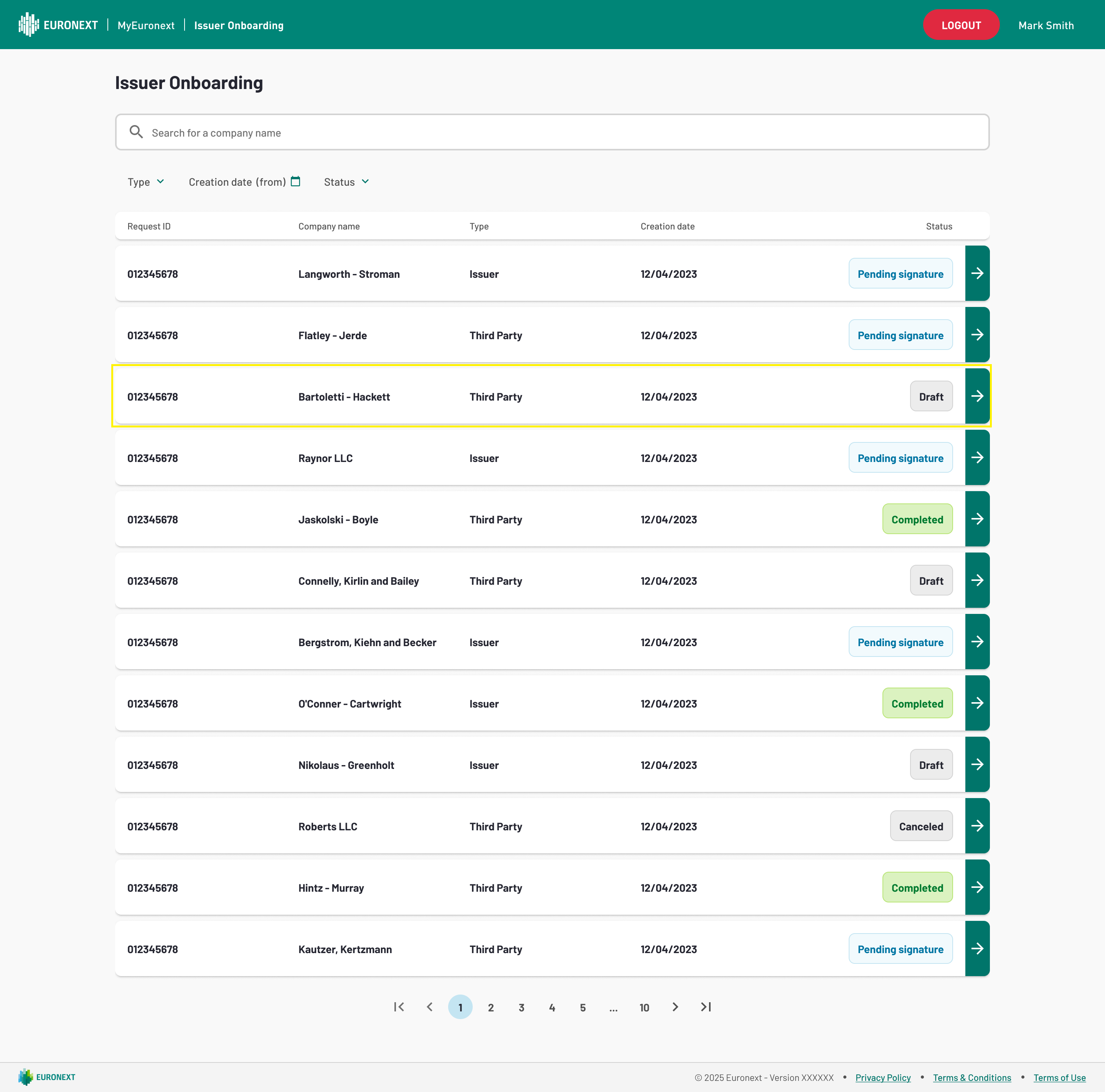
1. Issuer Onboarding - Request list
By clicking on the request you want to complete the prospect user will land on the "New Request" page, that is composed by three main steps:
- Company details
- Mandatory contacts
- Contracts
Company details
From the Company details, the prospect user will be able to check all the main information of his Legal entity, in particular:
- General information
- Legal address
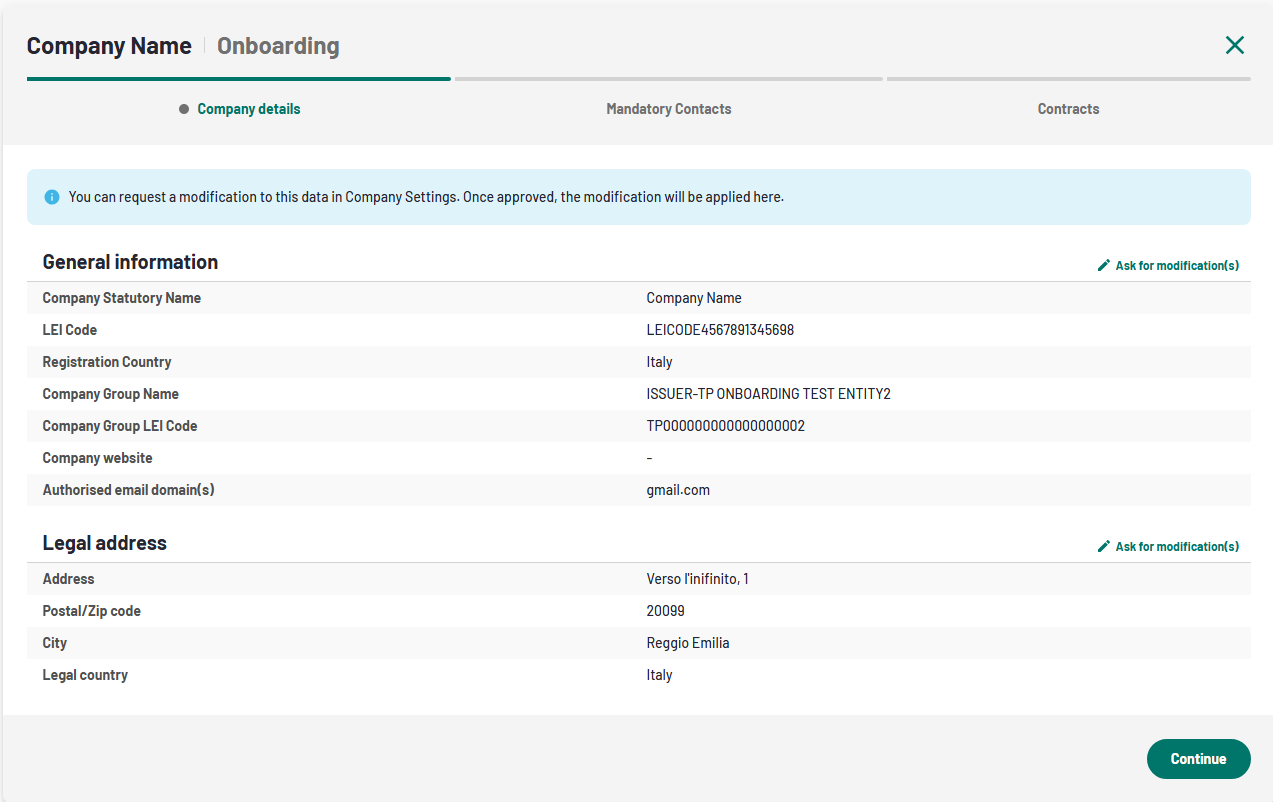
2. Issuer Onboarding - Company details
Click on "Ask for modification(s)", available next to each information category. By doing so, the prospectus user will be redirected to Company settings, from where he can manage updates to the relevant legal entity information. Please note that any modification to existing data is subject to Euronext approval. The onboarding process will be paused until approval is granted.
Click on "Continue" to move to the next step dedicated to the "Mandatory contacts".
Mandatory contacts
From this section the prospect user must define the Authorised Signatory, and the MyEuronext Administrators.
The Authorised Signatory has the authority to execute agreements for services delivered by the Euronext group, while the MyEuronext Administrator is responsible for managing user access settings for the domains under their supervision.
While it is possible to appoint one or two Administrators, there can only ever be one Authorised Signatory.
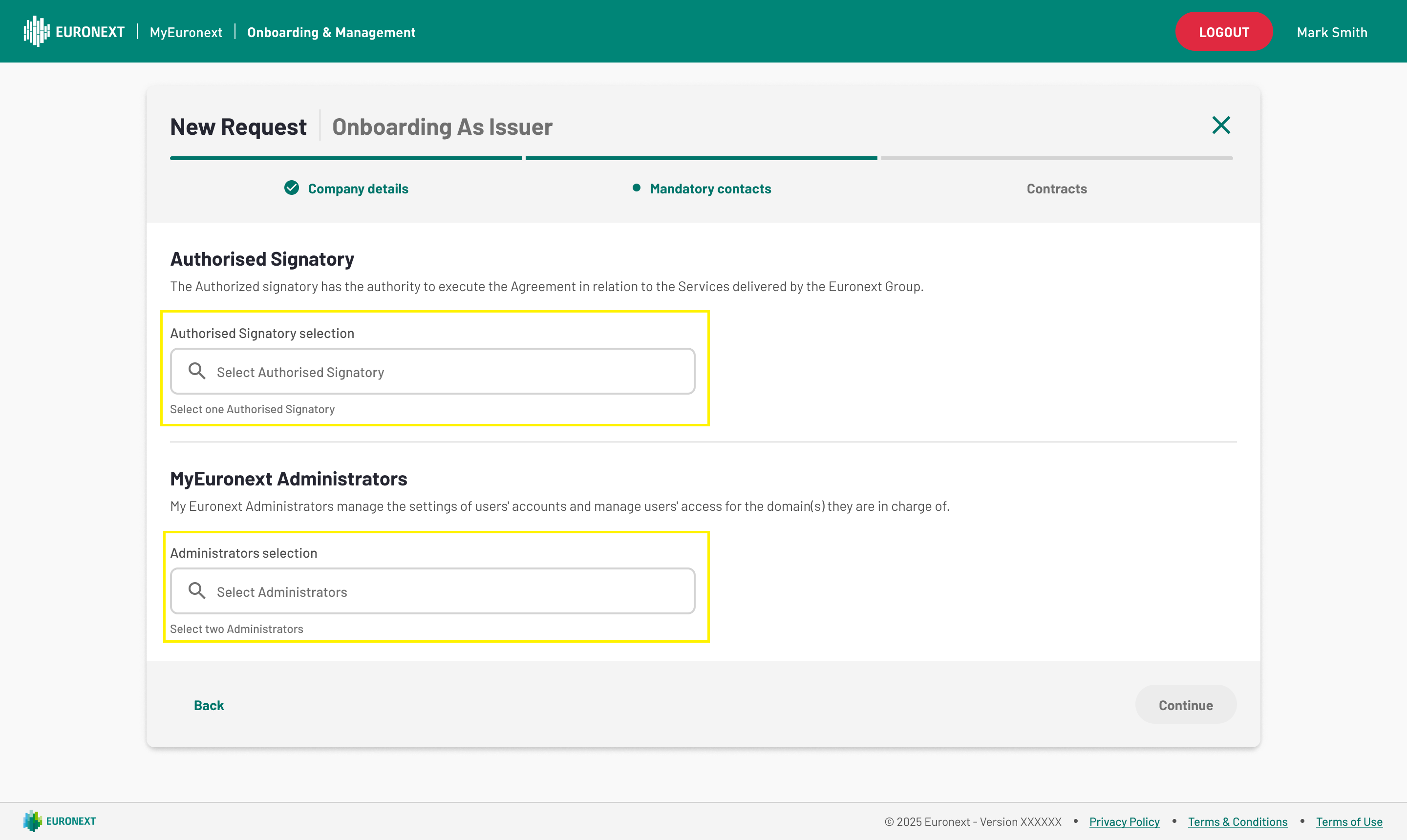
3. Issuer Onboarding - Mandatory contacts
This is how the ‘Mandatory Contacts’ page looks when the Prospect User has selected all the relevant contacts.
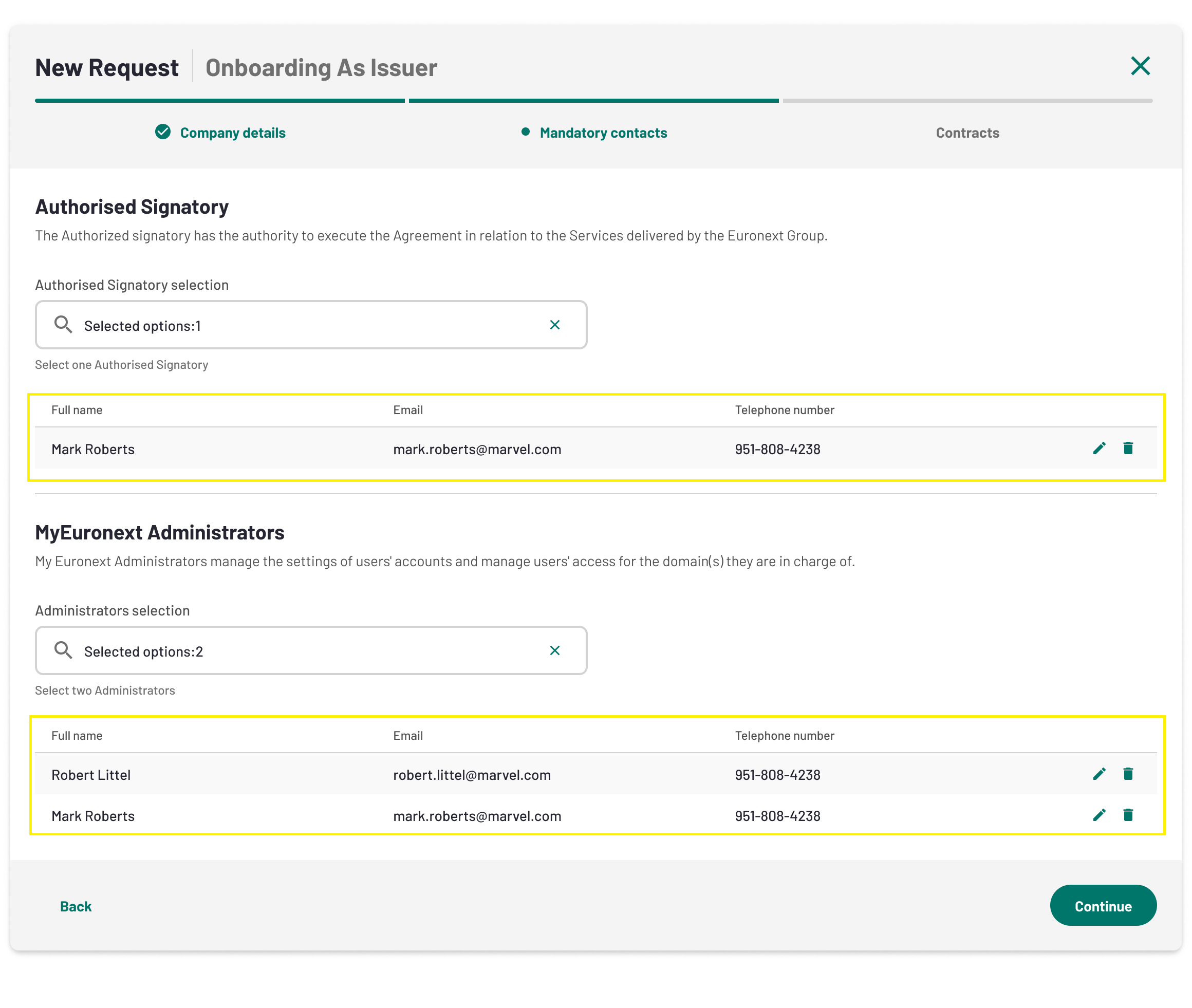
4. Issuer Onboarding - Mandatory contacts
If you want to amend something in the selected contact, click on the pencil icon, to be redirected to Company Settings, where you will be able to amend the main reference data of the selected contact.
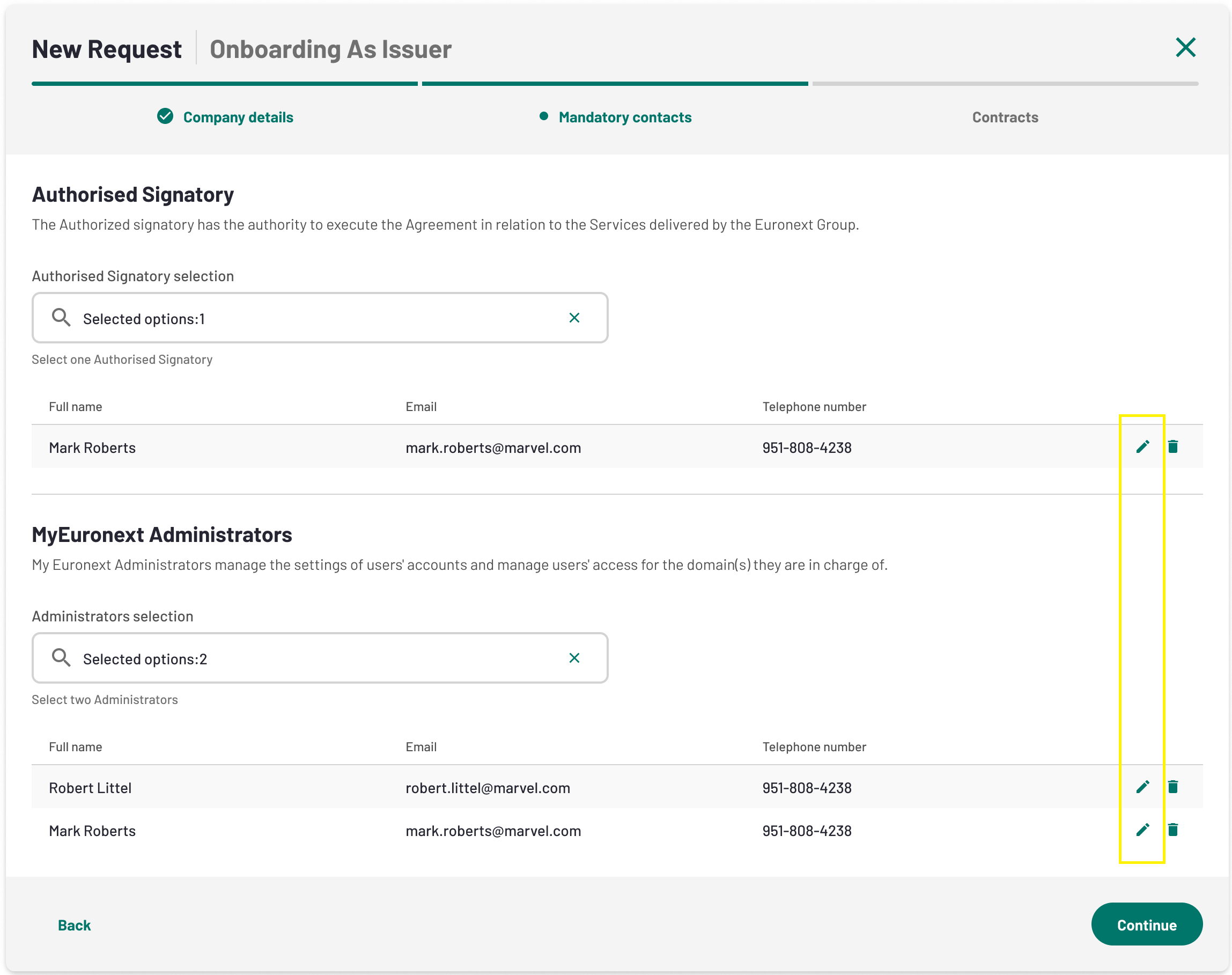
5. Issuer Onboarding - amend a mandatory contact
If you want to remove a previously selected contact from a mandatory contact list, just click the trash bin to delete it instantly.
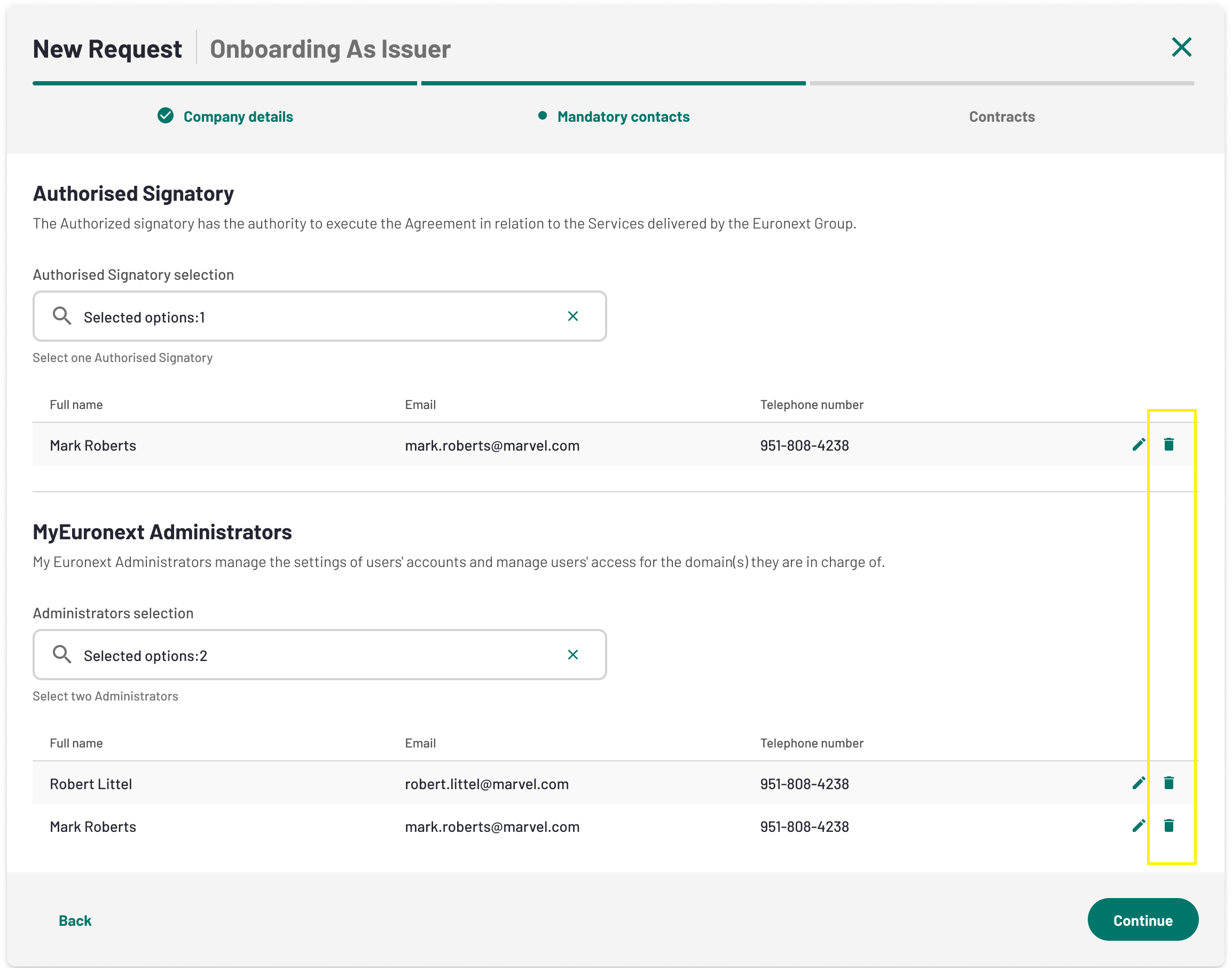
6. Issuer Onboarding - delete a mandatory contact
If you can't find the Authorised signatory or the MyEuronext Administrator you want to appoint, from the suggested contacts available in the dropdown lists, you can click on "Create new Contact".
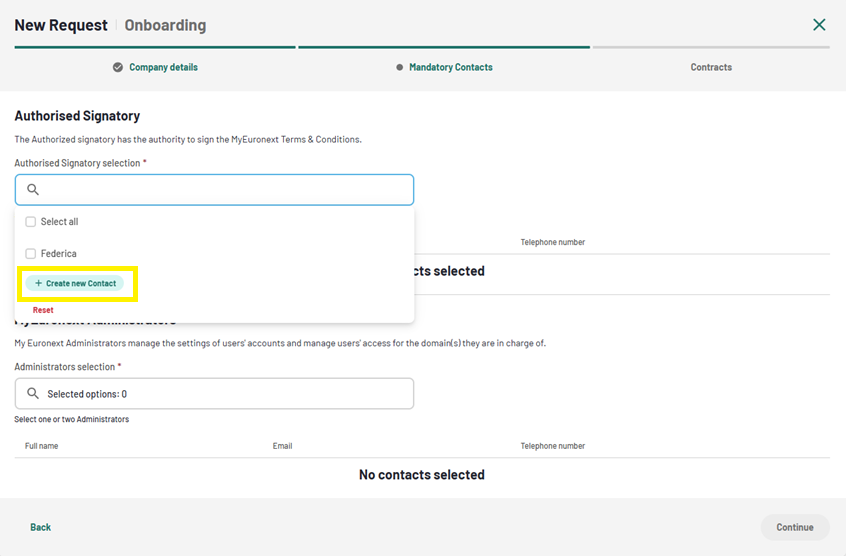
7. Issuer Onboarding - Mandatory contacts - New contact creation
As a prospectus user you'll be redirected to the new contact creation form in Company Settings. Here, you can enter the contact details. Once created, the new contact will be available in the dedicated dropdown list of Issuer Onboarding.
Contracts
As third step you will find the "Contract" section. This page displays the status of the MyEuronext Terms & Conditions document signature. The document is generated after submission, and the company’s authorized signatory will receive an email notification requesting their signature before the request can be approved by Euronext.
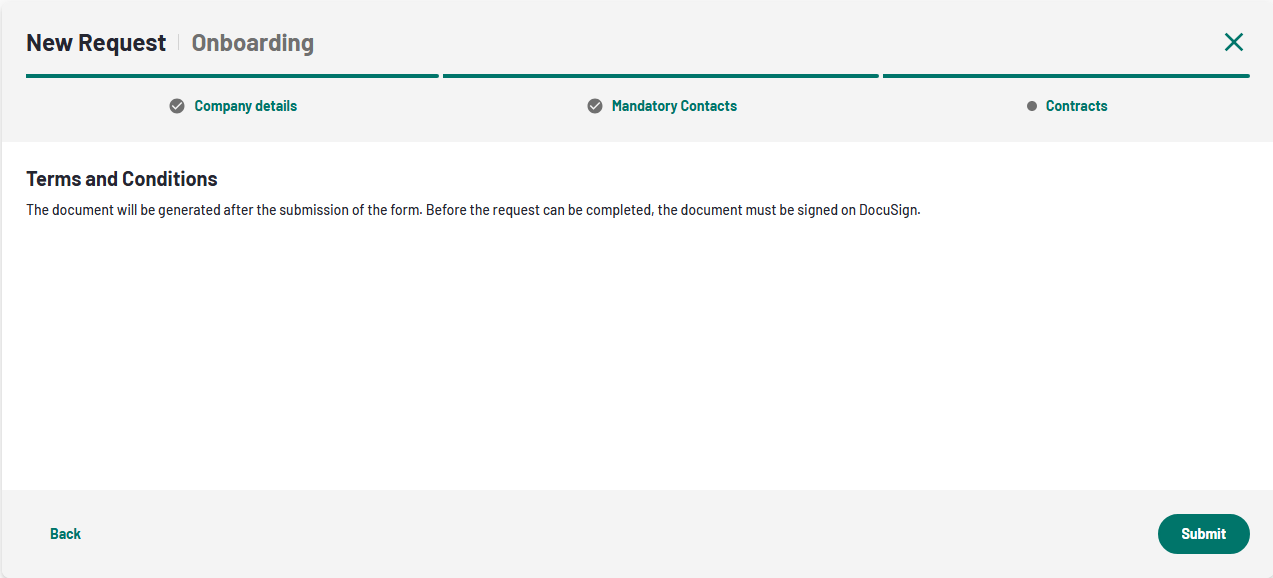
8. Issuer Onboarding - Mandatory contacts - New contact creation
Click on "Submit" button to get to be signed via email. During this step, and until the document is not signed, the status of the request is: "Pending Signature".
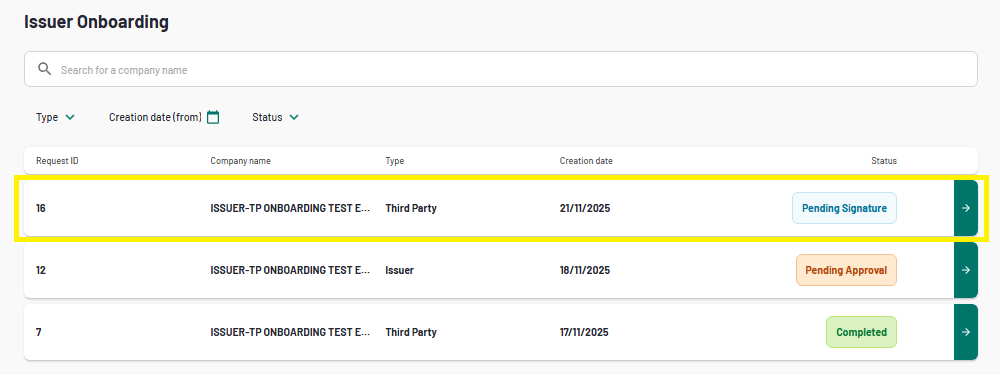
9. Issuer Onboarding - Status transition
Note that, if the Terms & Conditions is already signed, the signature process will not be required at this stage.
When the Terms & Conditions is signed, the request status will turns to "Pending Approval". From the Contracts tab, you will be able to see the approval tatus on Euronext's side, which will remail "To be approved" until the application is either approved or rejected by all the relevant Euronext approvers. .
Form this section you will also be able to download the T&C document, by clicking on the dedicated button.
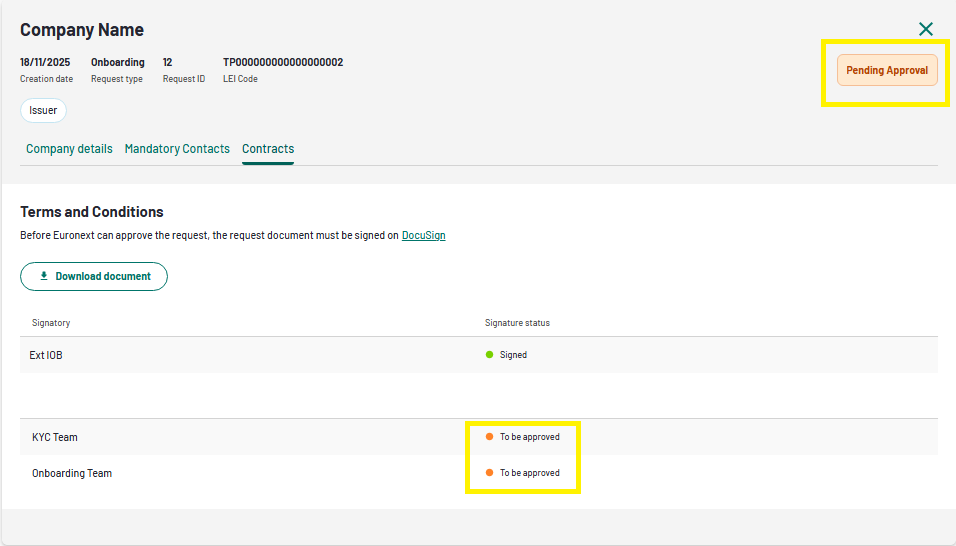
10. Issuer Onboarding - Contracts and Request approval status
Euronext has the option to reject the contract. In this case, the request status will change to Pending Customer Review.
In case of rejection of the request you will receive an email notification informing that you need to take an action and review the request.
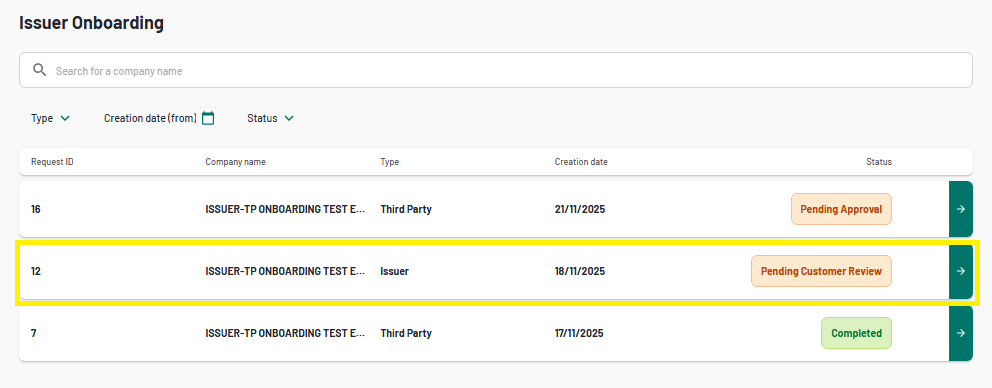
11. Issuer Onboarding - Request status upon Euronext rejection
The rejection reason will be available at the top at the request, in the "Company details" section.
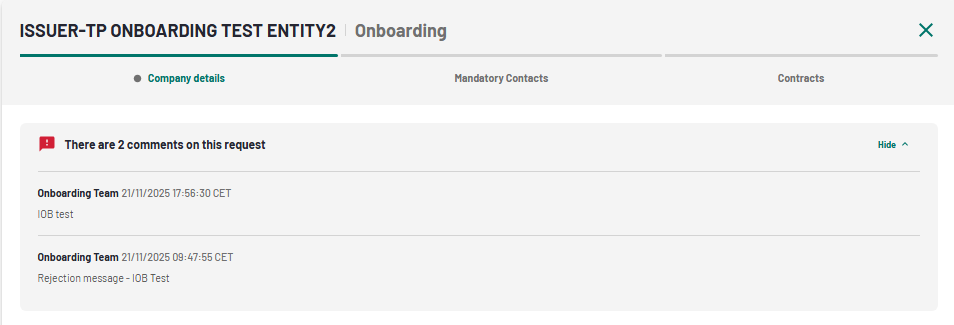
12. Issuer Onboarding - Rejection comment
In this status, is still possible to amend the request, in all the steps (Company details, Mandatory contacts and Contracts). After the submission, the request will move again to "Pending approval", waiting for Euronext to approve.
Once Euronext approves the request, then the final status will be "Completed", and you will receive an email with a direct access to MyEuronext Help Center and to Company Settings.
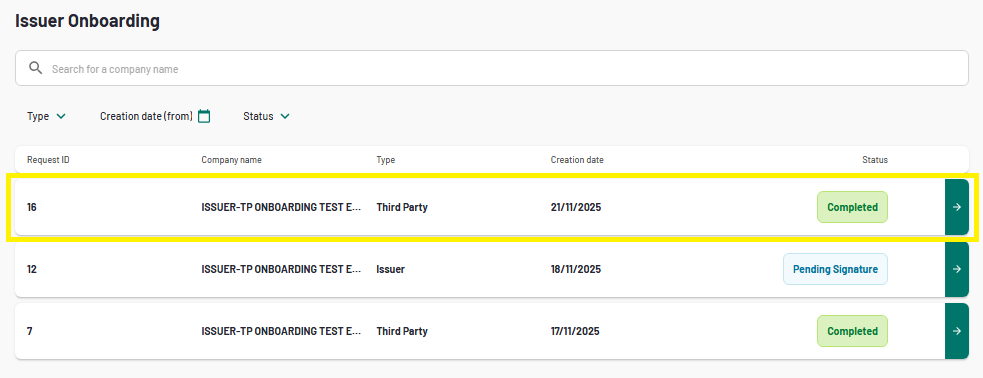
13. Issuer Onboarding - Completed status
Onboarding Statuses
Throughout the process, the onboarding request will change status according to each step. Below is the complete list of all the statuses that a single issuer onboarding request can reach.
| Status | Description |
| Draft | When the request has not been submitted |
| Cancelled | When the user requested to delete the request |
| Completed | When the request has been approved by the internal user |
| Pending Approval | When the request has been submitted and either the T&C has been signed or the T&C signature is not needed. |
| Pending Customer Review | When the request has been rejected by the internal user |
| Pending Signature | When the request has been submitted but the T&C has not been signed yet by the Authorised Signatory (when the signature is required) |
Onboarding notifications
As a Prospect user or MyEuronext Administrator, you will receive email notifications at each step of the onboarding process.
Below you can find a list of the main notifications, including the subject line details.
| Recipient | Triggering step | Email subject |
| Prospect User | When the Euronext onboarding team submits the onboarding creation request. | MyEuronext - Onboarding of <Company Name> |
Prospect Users and MyEuronext Administrators | When the Prospect User or the Euronext onboarding team submits the onboarding initiation and the T&C signature by the client Authorised Signatory is needed. | MyEuronext - Onboarding of <Company Name> - Request submitted pending signature |
Prospect Users and MyEuronext Administrators | When the Euronext onboarding team rejects the onboarding initiation. | MyEuronext - Onboarding of <Company Name> - Request rejected |
Prospect Users and MyEuronext Administrators | When the Euronext onboarding team acknowledges the onboarding initiation. | MyEuronext - Onboarding of <Company Name> - Request completed |
Prospect Users and MyEuronext Administrators
| Onboarding initiation has been cancelled. The requests goes in Cancelled | MyEuronext - Onboarding of <Company Name> - Request cancelled
|
Video sum-up
We are pleased to provide this video in different languages, for your convenience.