
MiFID Short Code Hub - Add, modify or delete a short code
From the Company tab, by selecting a company, you will be directed to the Short Codes detailed page.
From here, by clicking on Modify Short Code button, you can:
- Assign a new short code to a Responsible Person
- Modify a short code assigned to a Responsible Person
- Delete a short code assigned to a Responsible Person
- For each short code: associate FirmIDs, markets and segments
Add a new Short code
To assign a new Short Code to a specific Responsible Person, just click on "Add short code" button.
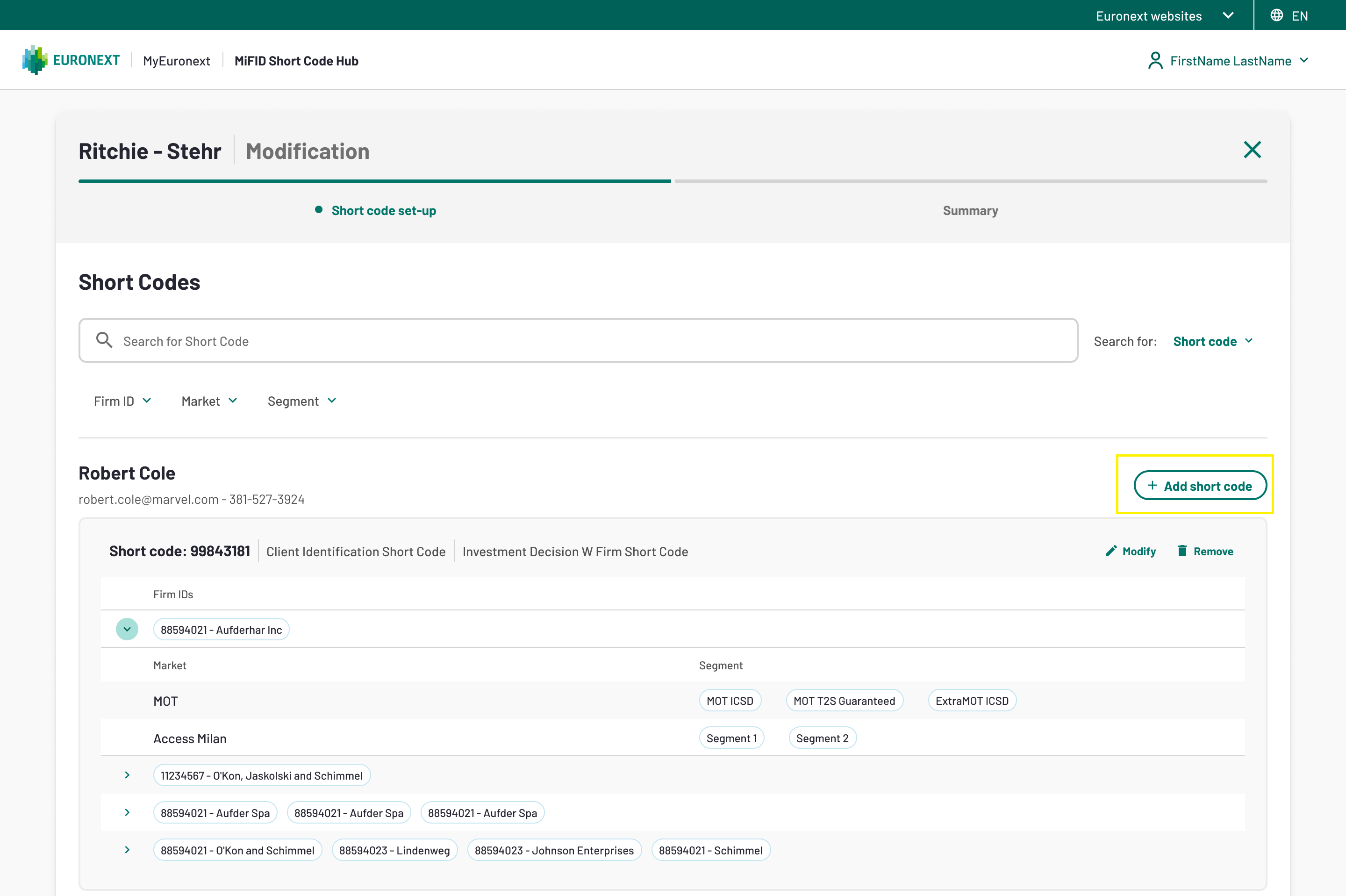
1. Add short code
A two steps modal will opens, allowing you to set up Short codes, FirmIDs and define markets and segments for a specific Responsible Person. The first step, is focusing on the FirmID definition, and you'll need do provide the following information:
- Short Code
- Type of Short code
- FirmIDs
As first instance define the Short code, then choose the short code type selecting the right value from the dropdown list, and as a third step select the FirmIDs between the once available in the list
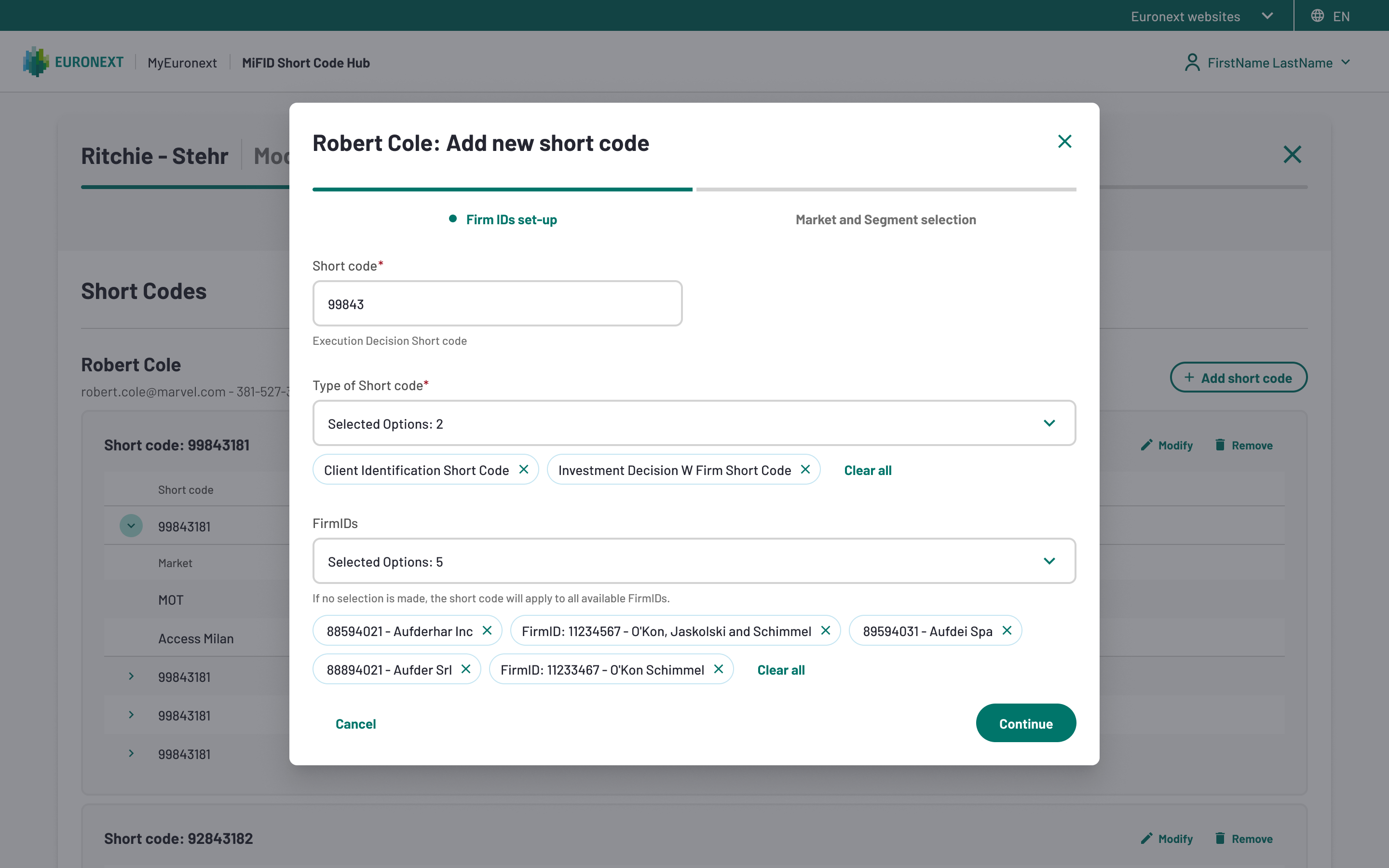
2. FirmIDs set up modal
By clicking on "Continue" you will move to the FirmIDs set up step, where you can assign the Markets, and upon market definition, you will need to assign the segment.
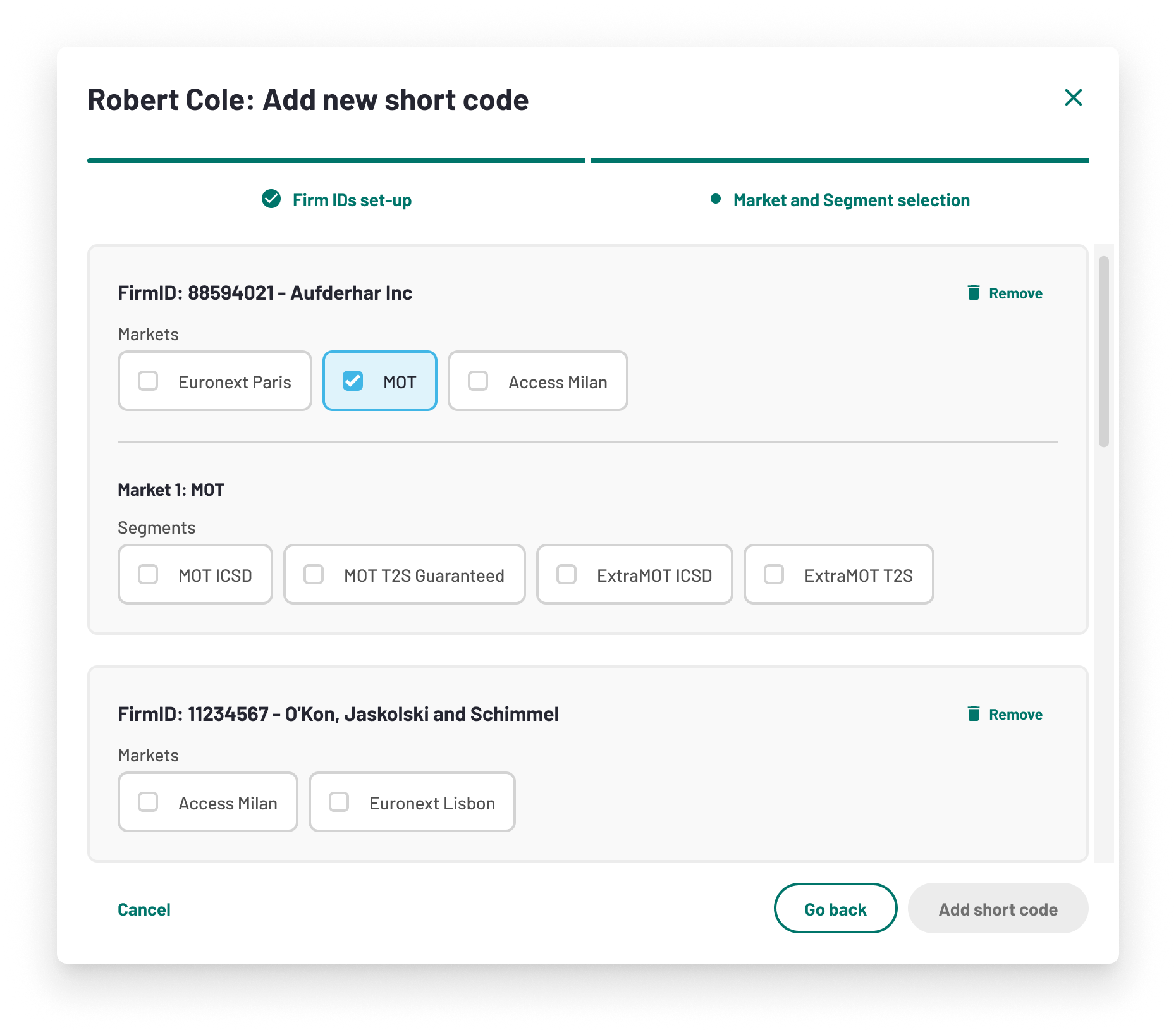
3. FirmIDs set up modal - Market and segment definition
Click on "Modify short code" to see the new short code appear in the list of short codes assigned to a specific Responsible person. Click on Continue button to land on the modification overview page, where the new short code is highlighted in green, and to "Submit the request".
You will find you request in status "Completed" in the Modification tab, with the new short code highlighted in green.
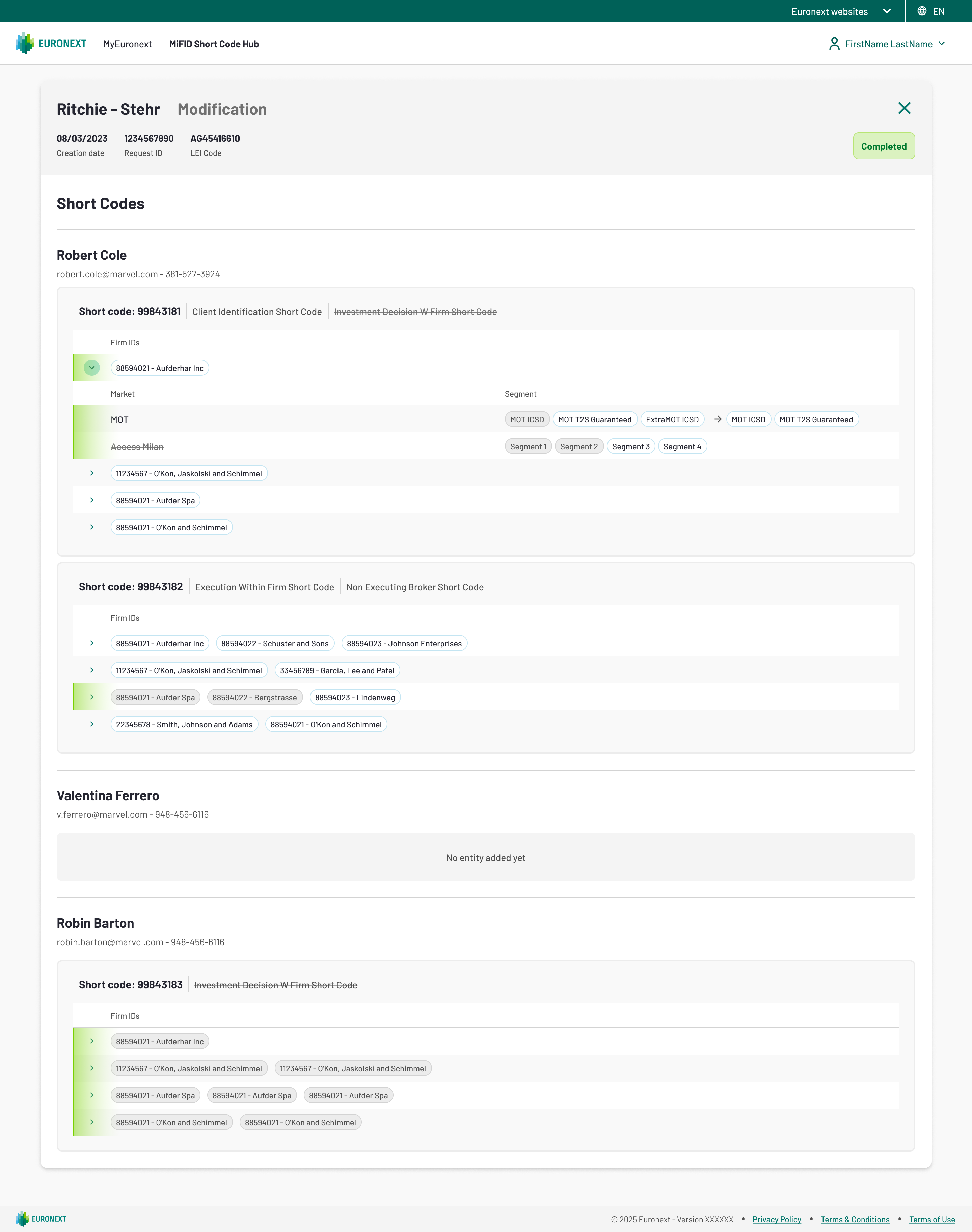
4. New short code submission completed
Modify a Short code
To modify a Short Code already assigned to a specific Responsible Person, just click on "Modify Short code" button.
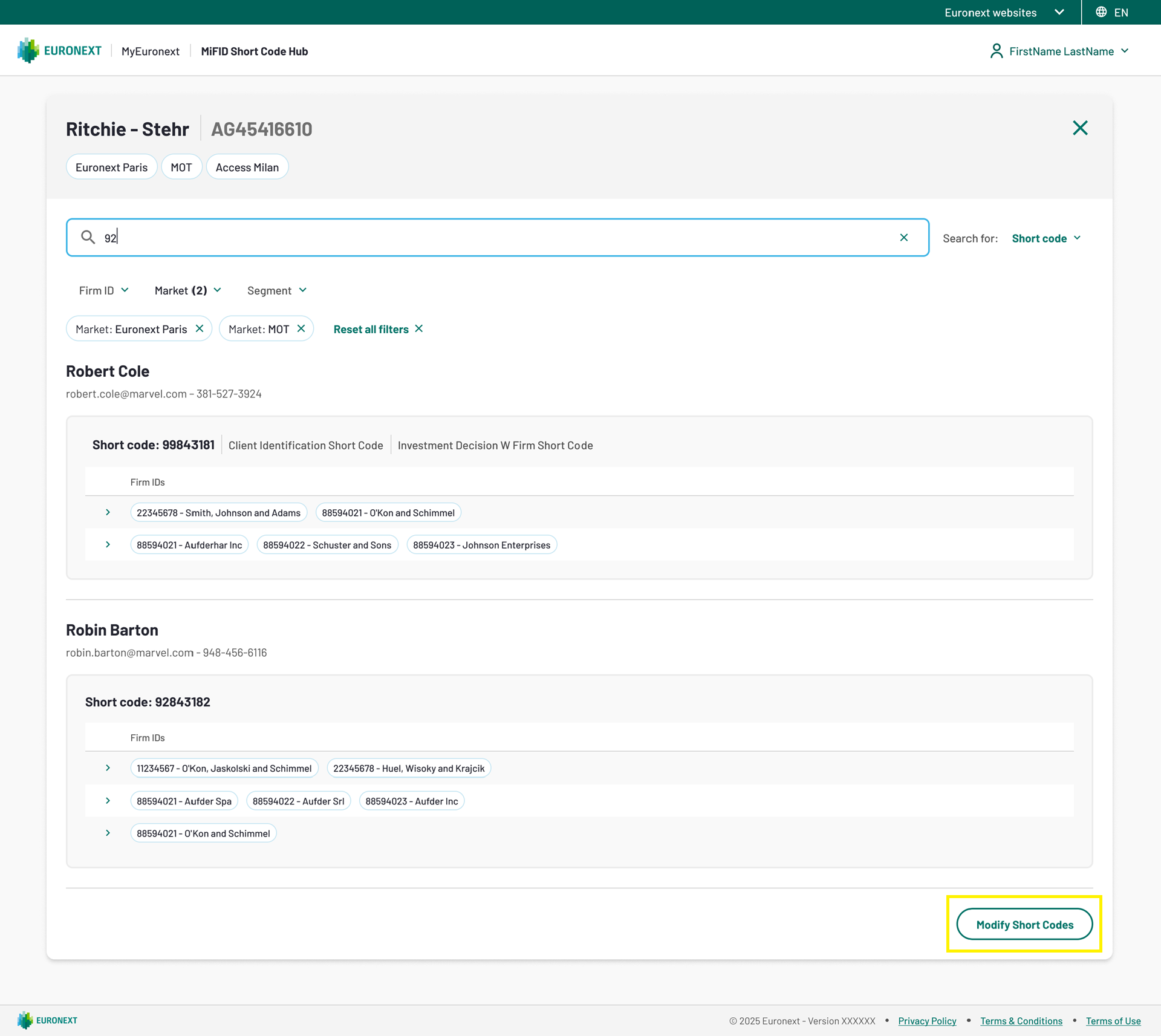
5. Modify short code
Now, next to each Responsible Person you will see the "Modify" and the "Remove" buttons appear.
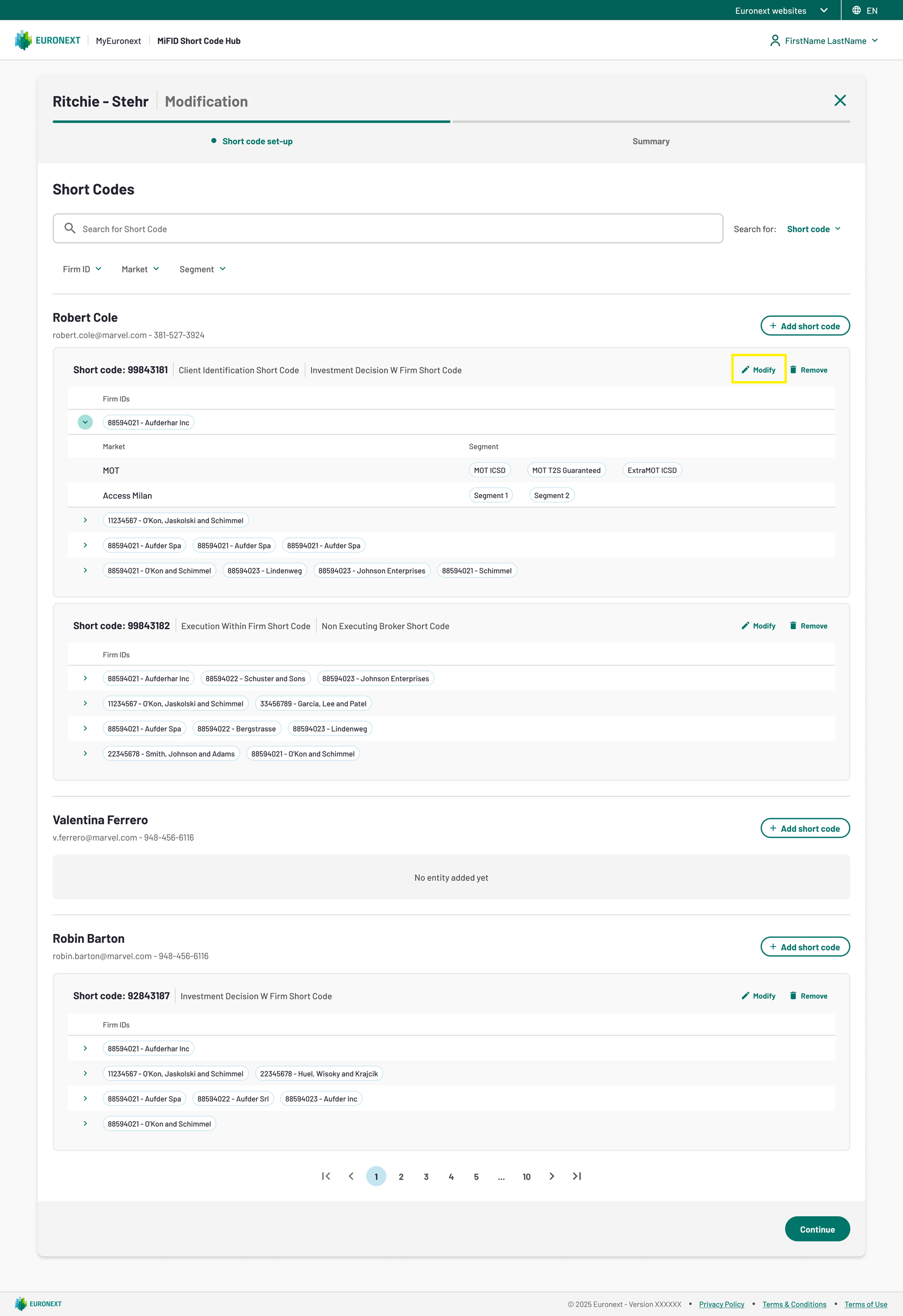
6. Modify short code - Modify and remove options
Click on "Modify" to see the Modify short code modal in two steps will appear. Here you will find all the main fields prefilled with the current values, and you can amend them. When you've done all the modifications, then click on "Continue" to move to the second step of the Market and Segment selection. Click on "Modify short code", and click on "Continue" from the Modification list. Here, you will be redirected to a summary page with the overview of the amendments you have performed.
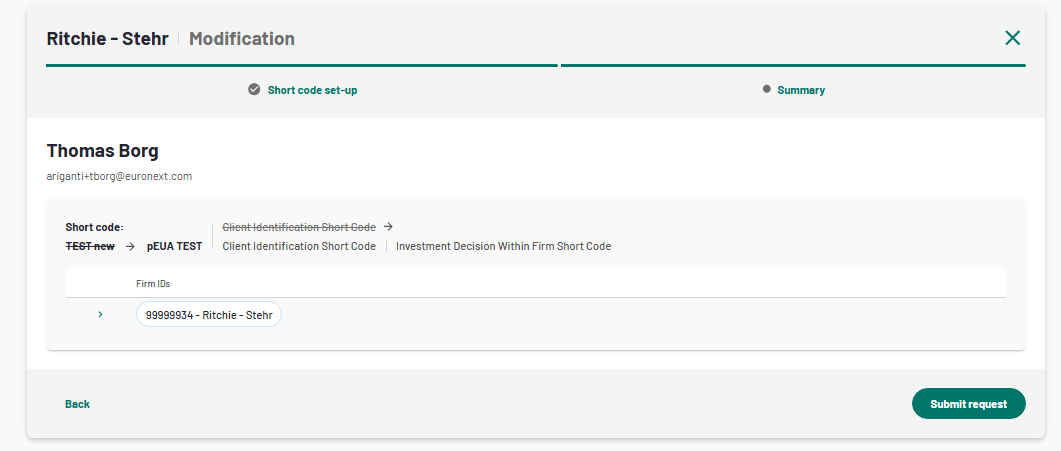
7. Modify short code - amendments overview
By clicking on "Submit Request" button, you will land on the Modifications tab, where the request will be on top of the page, in "Completed" status
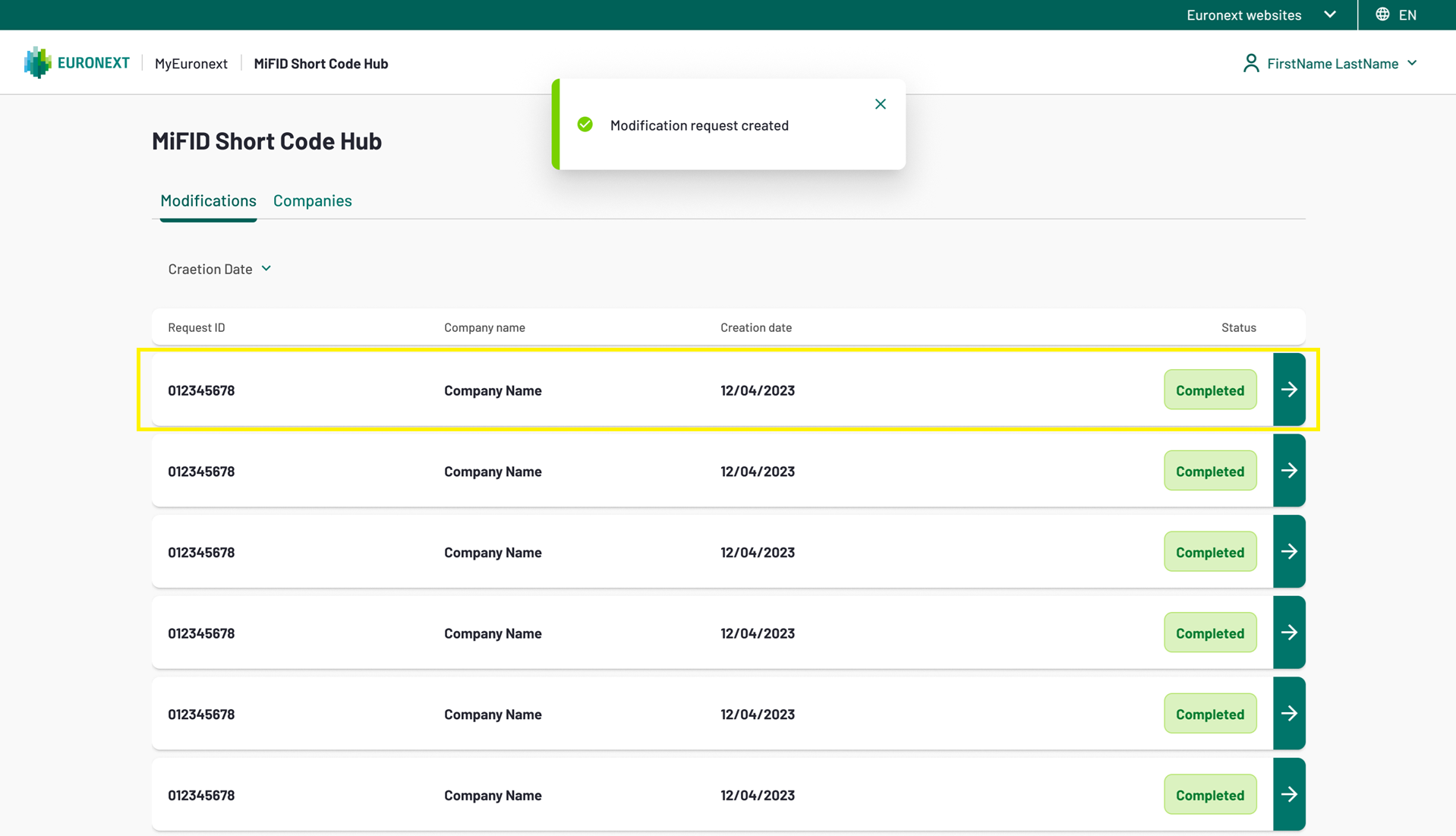
8. Modify short code - Completed status
Remove a Short code
To remove a Short Code already assigned to a specific Responsible Person, just click on "Remove" button, next to the impacted contact.
Now, next to each Responsible Person you will see the "Modify" and the "Remove" buttons appear. Click on "Remove" next to the short code information you want to delete. It will disappear in real time, but to male it effective, you also need to "Continue" to see an overview of the removed information, and then submit the request by clicking on the dedicated button. You will them redirected to the list of request, where you will find the request on top of the modification request tab, in "Completed" status.