
Message list, filtering and threads creation
The "Message center" is a new feature that enables you to communicate quickly and efficiently with the Euronext listing team, directly from your project and without the need to use email and at any stage of the project, even when it's in "Executed" status. You can create new threads by assigning a subject, await a response from the relevant team, and close the thread once all queries have been resolved.
To reach the Message Center, just select the project you want to open. You will find the "Message Center" tab next to the "Project folder" one.
Message List
As a first step, you will find the following tabs, that will help you categorise your messages base on their status:
- All messages
- Awaiting your reply
- Awaiting Euronext reply
- Resolved
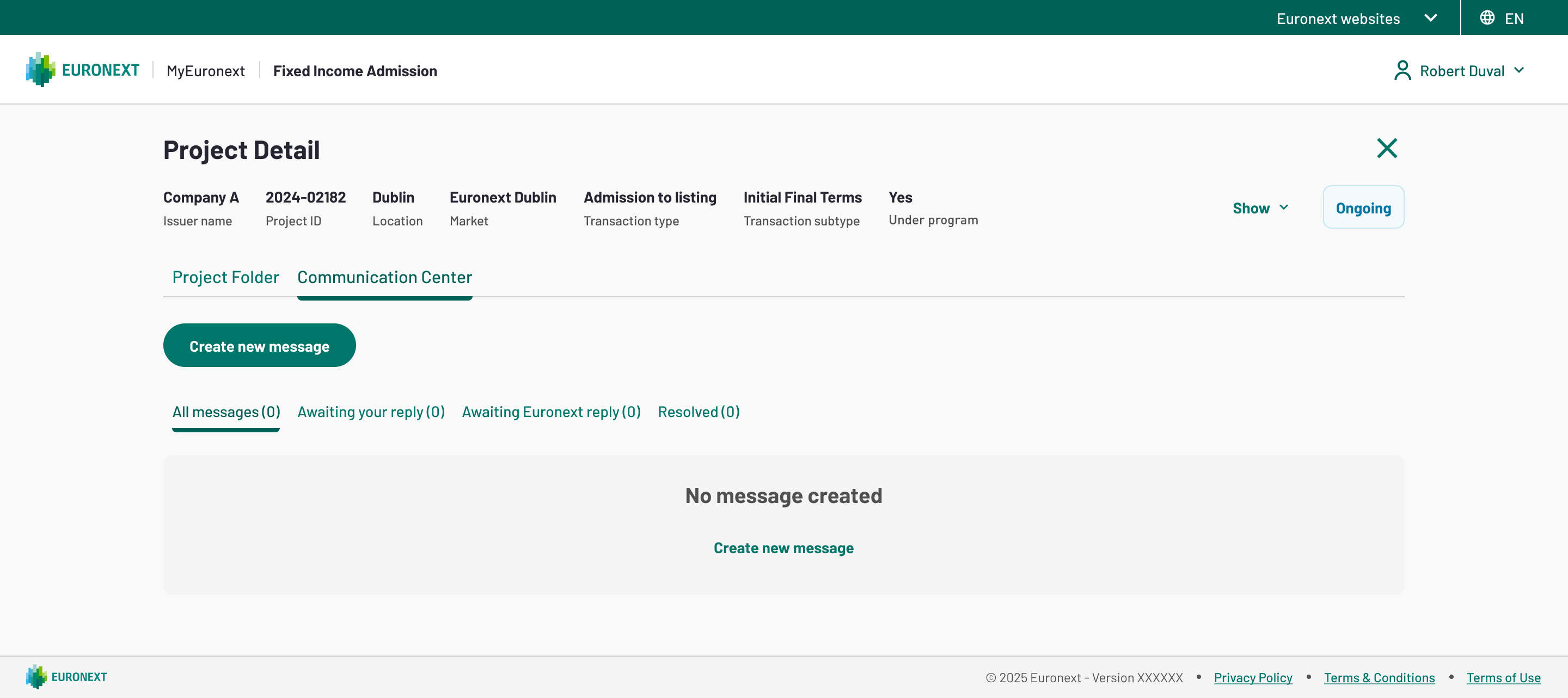
1. Message Center - No discussions yet
You can have several threads ongoing, with different statuses, on the same project. This is how you message list looks like in this case:
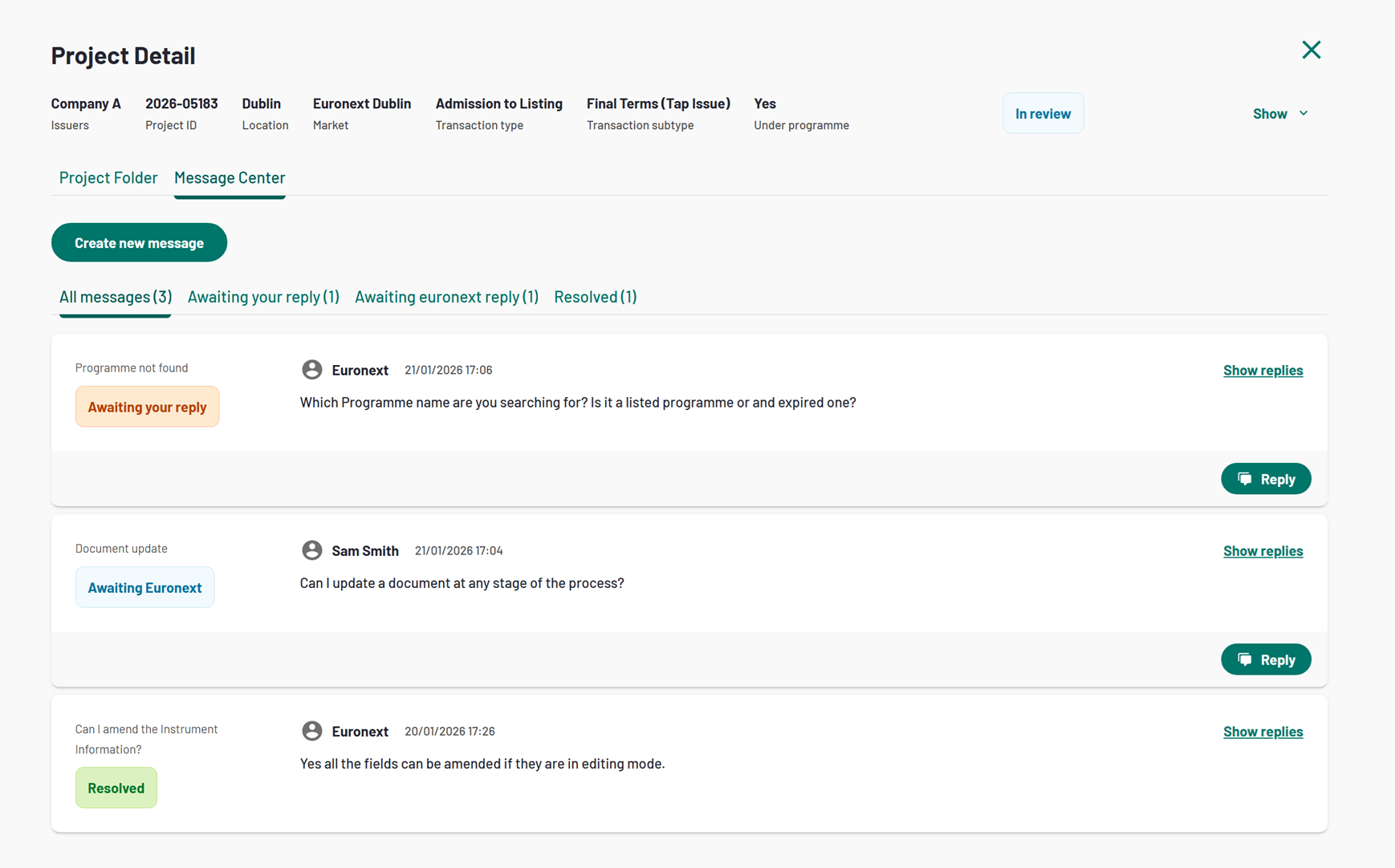
2. Message List - multiple projects
Create a new message
If you want to start a new message, click on "Create new message" button to see the "New message" modal will opens allowing you to define:
- Subject
- Message: The maximum number of characters permitted is 5,000, and a counter above the message box will help you track how many characters you have already used.
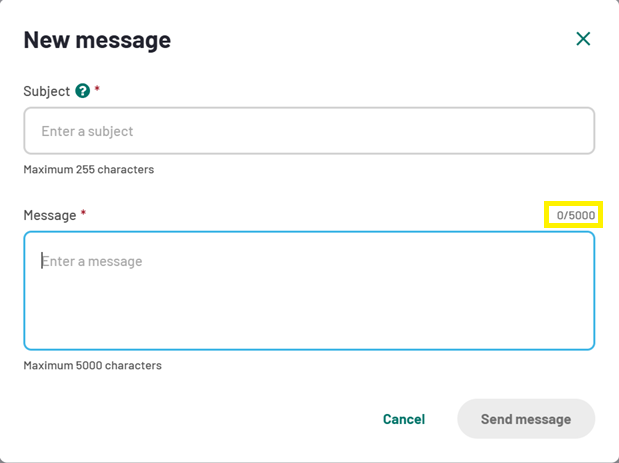
3. Message Center - New message modal
When all the relevant information of the message are ready, the "Send message" button will turn green and clickable. Once clicked, the message is sent and it will be available in "All messages" and "Awaiting euronext reply" tabs.
The main information displayed on the message record includes the message status, the subject, the name of the message creator, the creation timestamp and the body of the request.
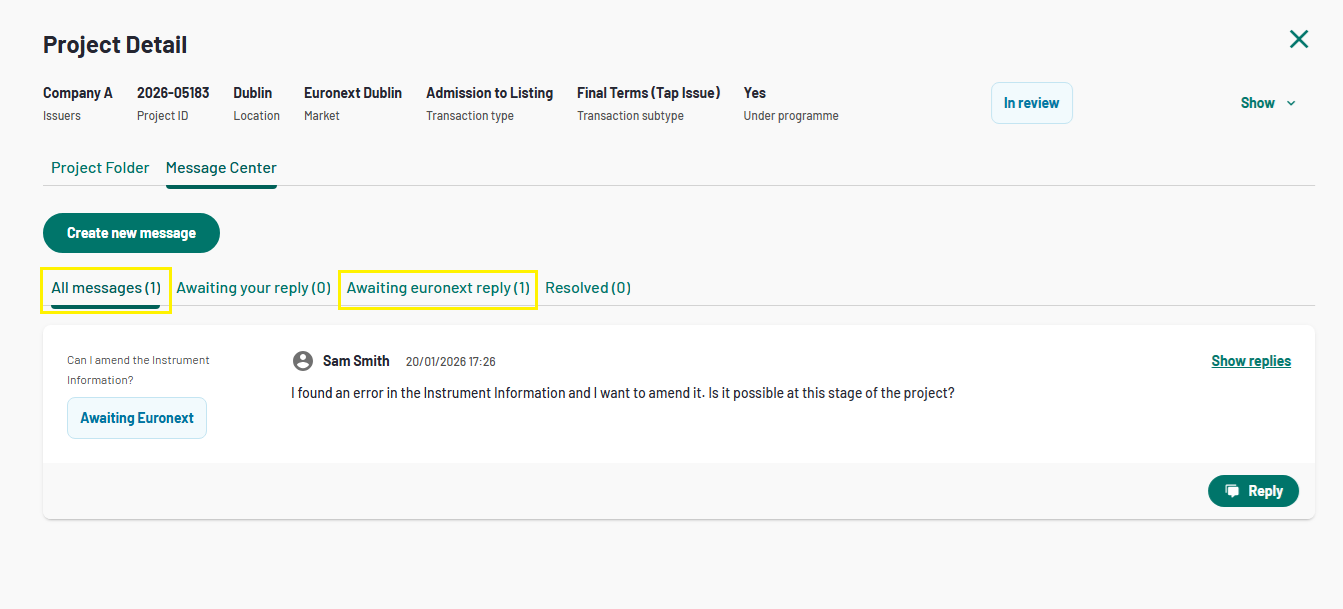
4. Message Center - message creation successful
The Euronext contact owner of your project will see the message and sends a reply, you will find the message in the new status "Awaiting your reply" and also the filtering tabs number will change accordingly.
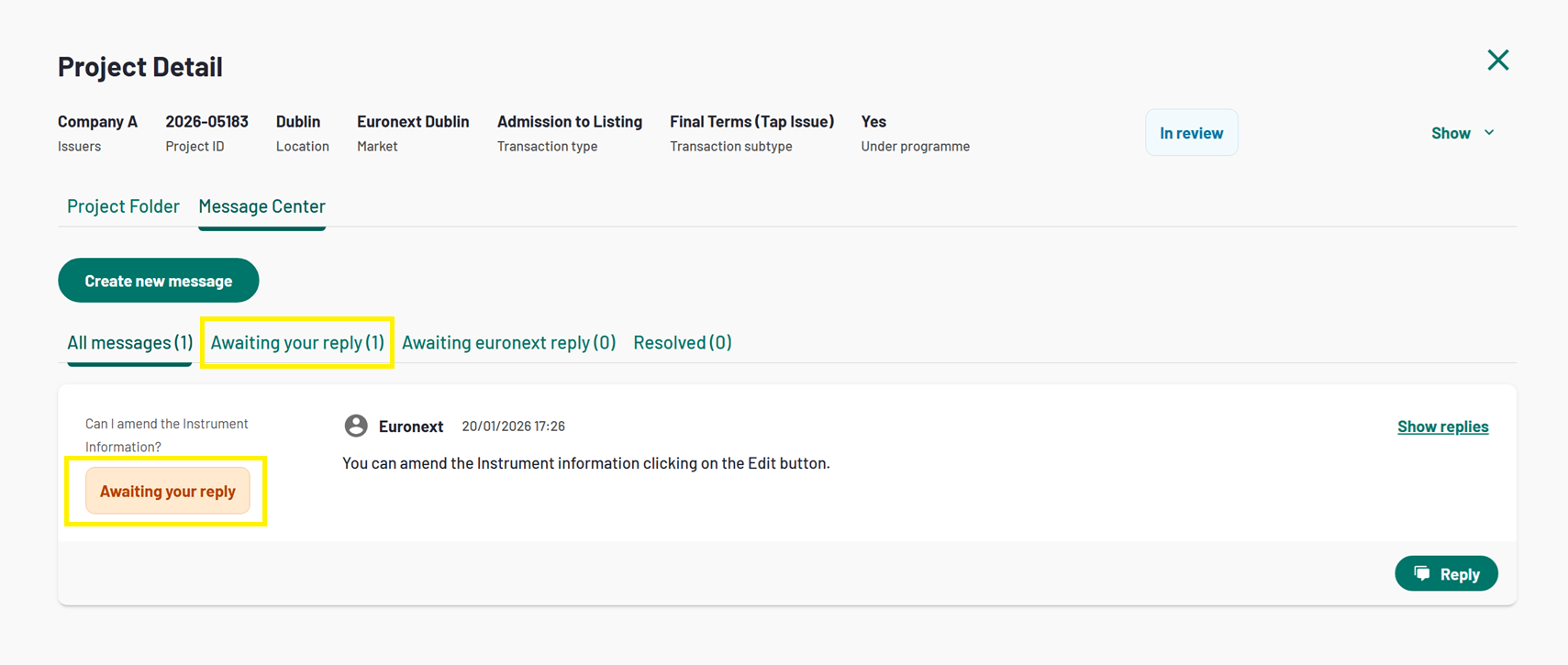
5. Message Center - Euronext reply visualisation
Reply to a message
To reply to a message, you have two options: either click on "Show replies" or select the "Reply" button. In both cases, a modal will open displaying a summary of the thread messages and a message box with a maximum limit of 5.000 characters.
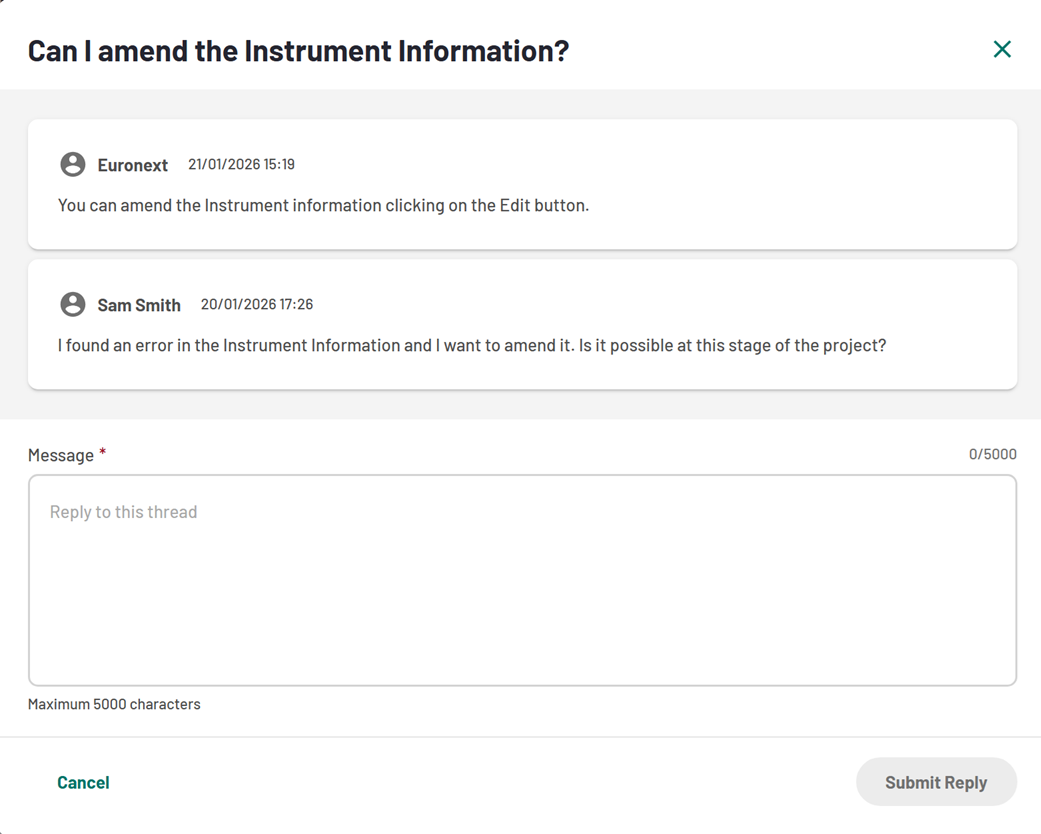
6. Message Center - Reply modal
The status of the message will change again into "Awaiting Euronext" and by clicking on "Show replies" you will find the very last message you sent, on top, as all the messages are in descendent order.
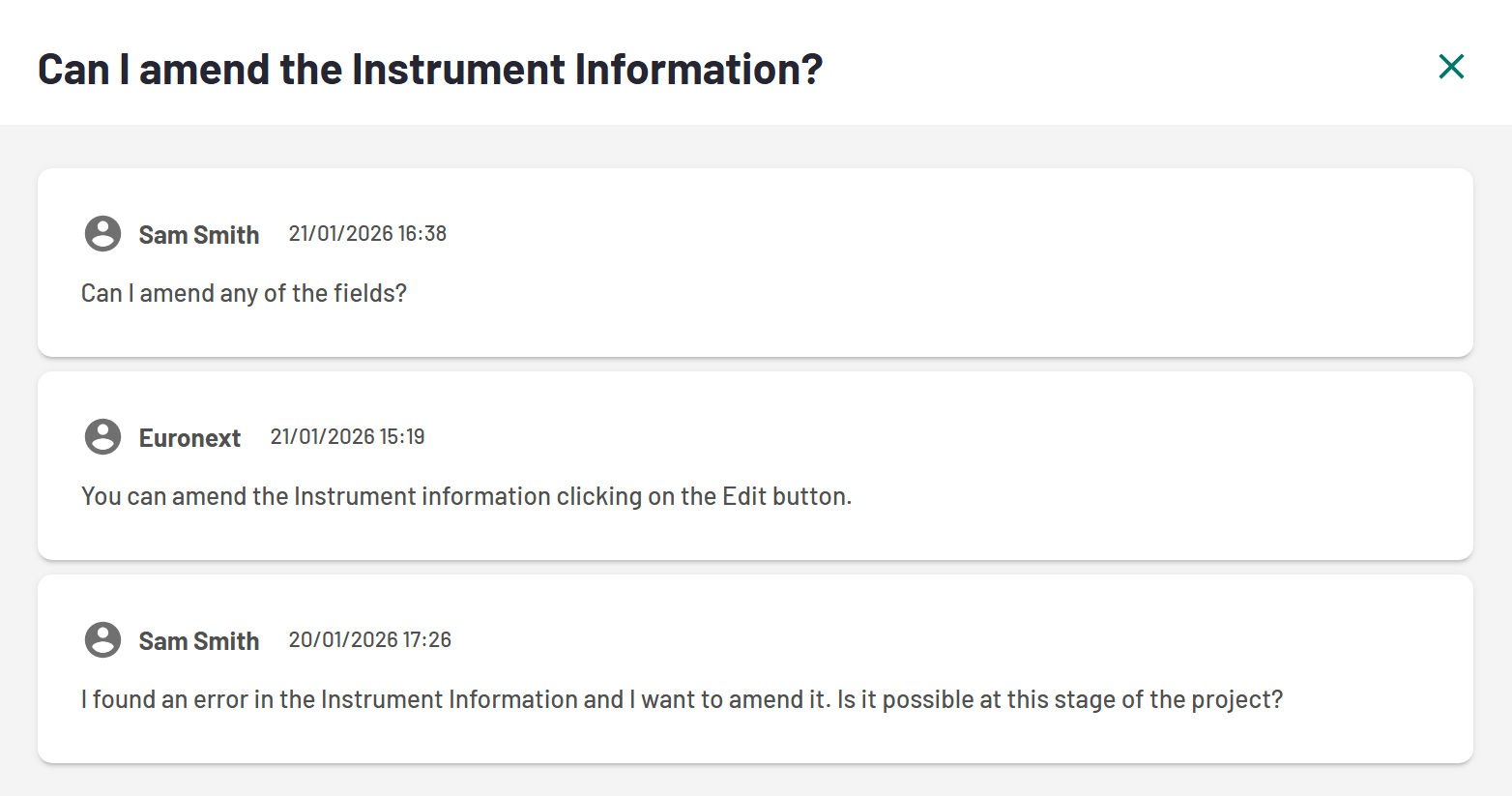
7. Threads messages order
Only Euronext operators can resolve a thread, which means that:
- the resolved message will be available in the "Resolved" tab
- the status of the thread will turns to "Resolved".
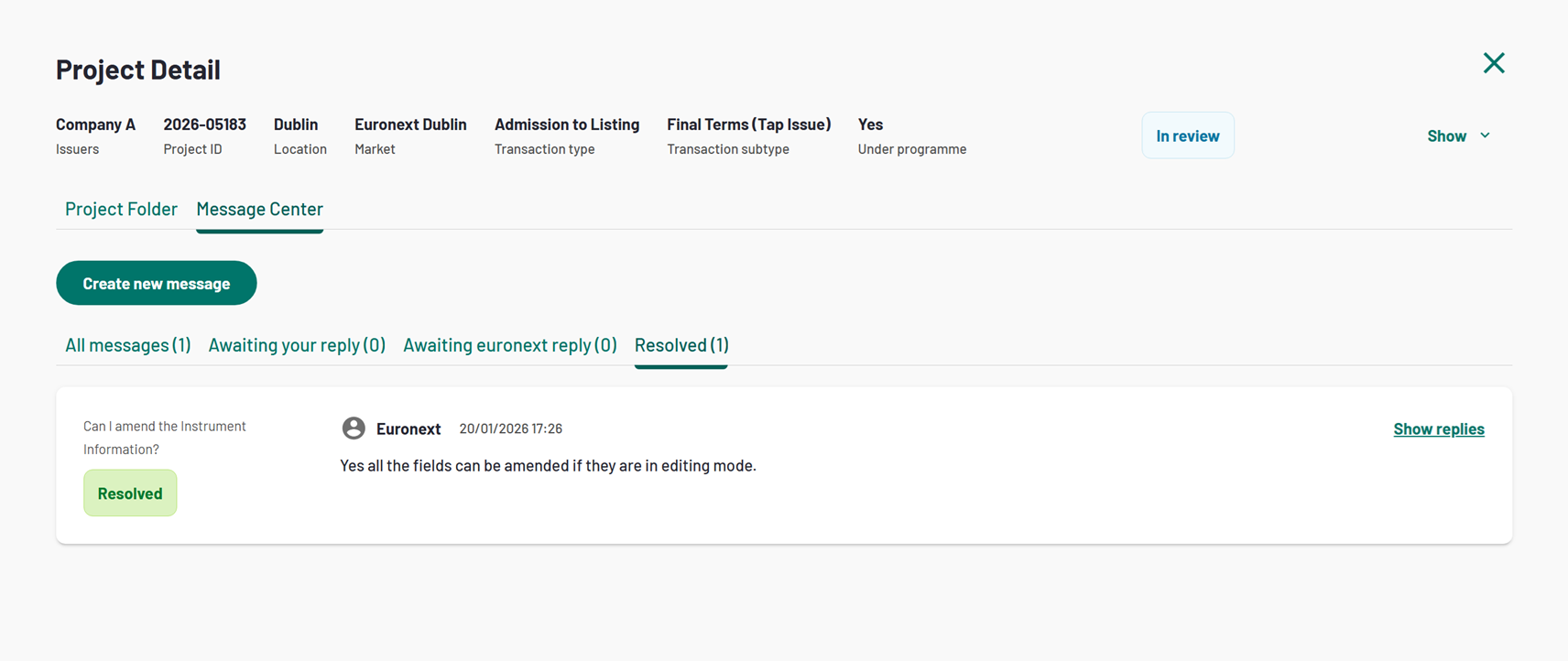
8. Message Center - Resolved status