
Corporate Action Equities - Create a New Request
The Create New Request page guides you through selecting the issuer, instrument, and corporate action type before filling in the corporate action form.
From the Request List, click "Create new request".
The page consists of three sequential steps presented as a stepper:
- Step one: Issuer Selection
- Step two: Instrument Selection - select the ISIN code associated with the chosen issuer.
- Step three: - Corporate Action Selection
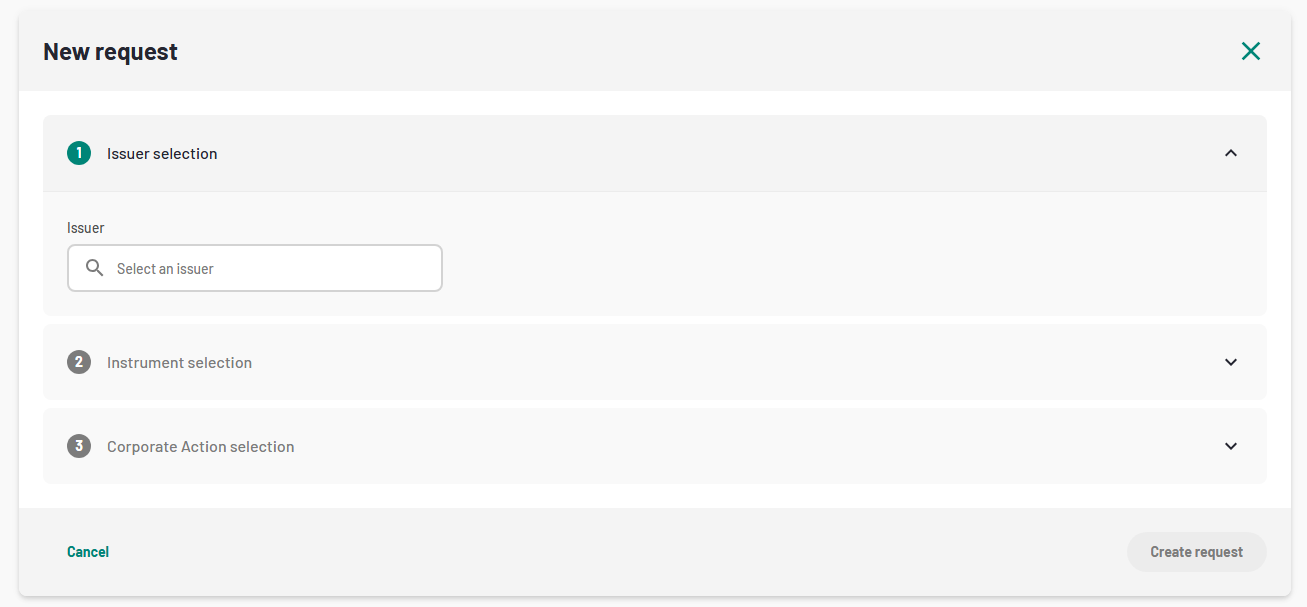
1. New request creation stepper
Choose the type of corporate action:
- Increase / Decrease — then select either Capital Increase or Capital Decrease.
- Split / Reverse-Split — then select either Split or Reverse-Split.
- Cash Dividend
- Optional Dividend
Once all three steps are complete, the "Create request" button becomes active, click on it to open the corresponding corporate action form.
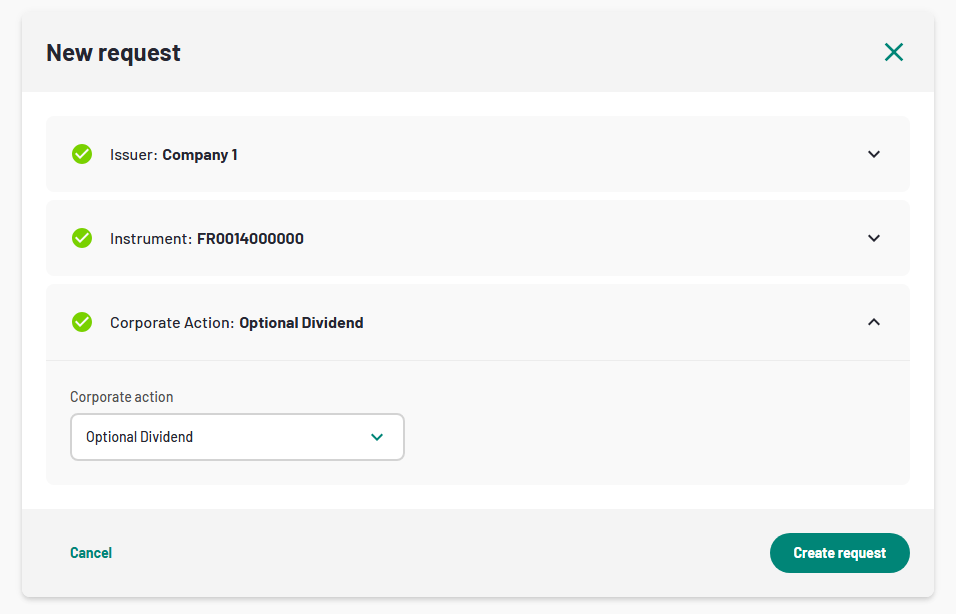
2. Create button enabled
Corporate Action type and expected fields
Each corporate action type has a dedicated form with specific fields. All forms share a common layout. A header summary showing the issuer name, ISIN code, symbol, currency, market of reference, other markets, operation type, and effective date. The form fields specific to the corporate action type. Additional form options (documents, comments, working group, publication timing, notice review) in the footer area and action buttons at the bottom of the page.
Cash Dividend
The Cash Dividend form allows users to submit a request for a cash distribution to shareholders.
Field | Description |
Distribution Type | Select the type of distribution (e.g., Ordinary dividend, Interim dividend, Final dividend, etc.).
|
Gross Amount | Enter the gross amount per share.
|
Centralising Agent | Enter the name of the centralising agent.
|
Shareholder Meeting Date | Select the date of the shareholder meeting. |
Ex-Date | Select the ex-dividend date.
|
Record Date | Select the record date.
|
Payment Date | Select the payment date.
|
Press Release | Indicate whether a press release is required (Yes/No).
|
Corporate Action Form | Indicate whether a corporate action form is required (Yes/No).
|
Operational Dividend
The Optional Dividend form allows users to submit a request for a dividend where shareholders can choose between cash and shares.
Field | Description |
Gross Amount | Enter the gross amount per share. |
Subscription Price | Enter the subscription price for the optional shares. |
Security ISIN to Receive | Enter the ISIN of the security shareholders will receive. |
ISIN of Interim Security | Enter the ISIN of the interim security, if applicable. |
Distribution Type | Select the type of distribution. |
Default Option | Select the default option (Cash or Shares). |
Ex-Date | Select the ex-dividend date. |
Record Date | Select the record date. |
Payment Date | Select the payment date. |
Start Date of Option Period | Select when the option period begins. |
End Date of Option Period | Select when the option period ends. |
Shareholder Meeting Date | Select the date of the shareholder meeting. |
Market Deadline Date | Select the market deadline date. |
Buyer Protection Deadline Date | Select the buyer protection deadline. |
Guaranteed Participation Date | Select the guaranteed participation date. |
Centralising Agent | Enter the name of the centralising agent. |
Standard Compliant | Indicate whether the operation is standard compliant (Yes/No). |
General Meeting Minutes | Indicate whether general meeting minutes are required (Yes/No).
|
Board Minutes | Indicate whether board minutes are required (Yes/No).
|
Press Release | Indicate whether a press release is required (Yes/No).
|
Corporate Action Form | Indicate whether a corporate action form is required (Yes/No).
|
Capital Increase
The Capital Increase form allows users to submit a request to increase the number of listed shares for an instrument.
Field | Description |
Number of Shares to Be Listed | Enter the number of new shares to be listed. |
Effective Date | Select the effective date of the capital increase. |
Reason of Operation | Select the reason for the capital increase from the available options. |
Linked Operation | Select a linked operation, if applicable (shown when the selected reason has a linked operation). |
Current Shares / Provisional Shares | Displays the current number of shares and the provisional number after the request is processed. |
Prospectus | Indicate whether a prospectus is required (Yes/No).
|
Press Release | Indicate whether a press release is required (Yes/No).
|
General Meeting Minutes | Indicate whether general meeting minutes are required (Yes/No).
|
Board Minutes | Indicate whether board minutes are required (Yes/No).
|
Capital Decrease
The Capital Decrease form allows users to submit a request to reduce the number of listed shares for an instrument.
Field | Description |
Number of Shares to Cancel | Enter the number of shares to cancel. |
Effective Date | Select the effective date of the capital decrease. |
Reason of Operation | Select the reason for the capital decrease. |
Current Shares / Provisional Shares | Displays the current number of shares and the provisional number after the request is processed. |
Prospectus | Indicate whether a prospectus is required (Yes/No).
|
Press Release | Indicate whether a press release is required (Yes/No).
|
General Meeting Minutes | Indicate whether general meeting minutes are required (Yes/No).
|
Board Minutes | Indicate whether board minutes are required (Yes/No).
|
Split
The Split form allows users to submit a request for a stock split, which increases the number of shares while proportionally reducing the share price.
Field | Description |
Change of ISIN Code | Indicate whether the ISIN code will change (Yes/No). |
New Shares ISIN Code | Enter the new ISIN code (if applicable). |
Number of Securities to Be Listed | Enter the number of new securities to be listed. |
New Shares Nominal Value | Enter the nominal value of new shares. |
New and Current Parity | Enter the parity ratio (new for current). |
Fraction Management | Select the method for managing fractional shares (Full Balance, Mixed Method, or Top-Down). |
Centralising Agent | Enter the name of the centralising agent. |
Effective Date | Select the effective date. |
Record Date | Select the record date. |
Payment Date | Select the payment date. |
General Meeting Date | Select the general meeting date. |
Board of Directors Meeting Date | Select the board meeting date. |
BALO Publication Date | Select the BALO publication date. |
General Meeting Minutes | Indicate whether general meeting minutes are required (Yes/No).
|
Board Minutes | Indicate whether board minutes are required (Yes/No).
|
Press Release | Indicate whether a press release is required (Yes/No).
|
Corporate Action Form | Indicate whether a corporate action form is required (Yes/No).
|
BALO Notice | Indicate whether a BALO notice is required (Yes/No).
|
Reverse-Split
The Reverse-Split form allows users to submit a request for a reverse stock split, which reduces the number of shares while proportionally increasing the share price.
The Reverse-Split form contains the same fields as the Split form.
Additional Options
At the bottom of every corporate action form, the following optional sections are available. Each section can be activated or deactivated using a toggle switch.
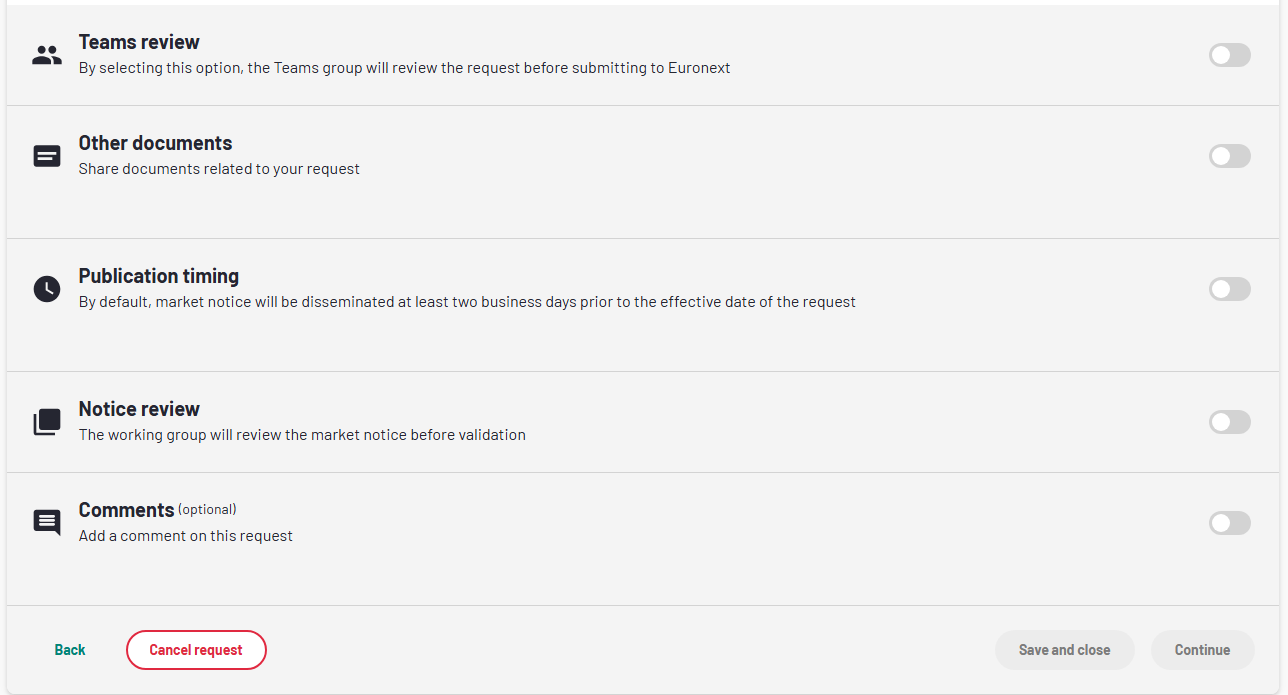
3. Corporate Action form - Additional Options
Teams Review
The purpose of activating the team review is to assign the request you have opened to a team member, who will review your request, before it is submitted to Euronext.
To activate this function, toggle the Team review switch to "On", select one or more reviewers (senior users) from the dropdown list. When teams review is enabled, submissions will first go to the reviewers for approval before being sent to Euronext.
Team Reviewer Actions
Action | When Available |
Submit review | When the request is in "Awaiting revision" status and you are assigned as a reviewer. |

4. Operation form - Team review option
Other Documents
When the Other document toggle is switched to “On”, you will be able to upload additional files by clicking on "add documents" and attached to the request.

5. Operation form - Other documents option
Publication Timing
By default, market notice will be disseminated at least two business days prior to the effective date of the request, but with this option, you will be able to specify the preferred timing for the publication of the market notice, choosing between:
- Before market opening
- During market session
- After market closing
You can also choose the date of the Market Notice dissemination.

6. Operation form - Publication timing option
Notice review
When the Notice review toggle is switched to "On", then team review will be able to review the notice before validation.
Comments
In the comment section, you will be able to provide additional context to the request. You can enable the option by switching the toggle to “On”. You can use up to 255 characters.
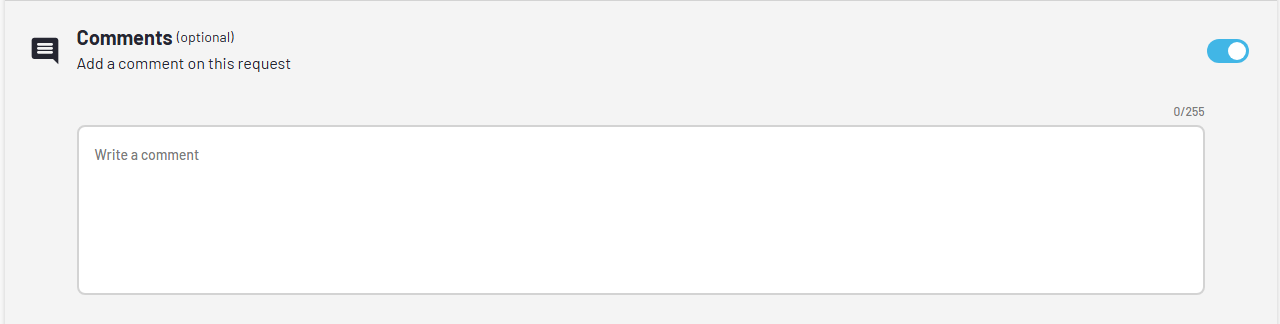
7. Operation form - Comments