
Fixed Income Admission - Dublin Listing - Amendend and Restated Final Terms
The Amended & Restated (A&R) workflow allows you to submit an amendment to the Final Terms of a previously admitted bond instrument. This guide walks you through every step — from identifying the eligible project you wish to amend, to uploading your revised documents, to receiving confirmation that the amendment has been fully processed by Euronext listing operator.
Initiate an Amended and Restated Final Terms
An amended & Restated submission can be initiated only when a project is in status “Executed” or "Amendment Executed" status.
The initiation can start by clicking on the dedicated button “Amend Final Terms” available in the Listing Finalisation section of the Project folder.
Please note that projects created in My Euronext Dublin Listing application before 13 October 2025, cannot be amended through this workflow and will not show the amendment button. In this case, please continue to submit Amendment and Restated Final terms via email.
First Amendment (projects in Executed status)
From the project folder, scroll to the "Listing Finalization" section. Here you will see a button labelled "Amended Final Terms".
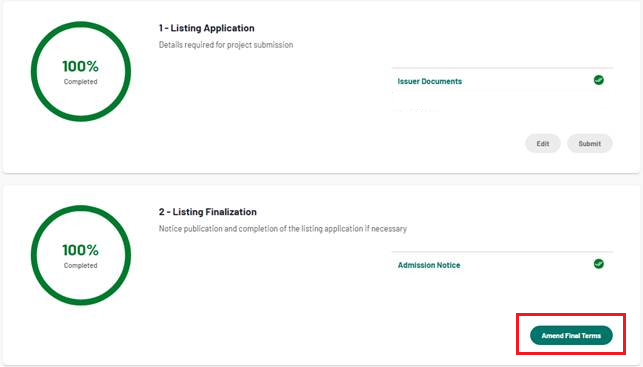
1. Amend Final Terms button
By clicking on the button a dialog box will opens with the following fields:
- "Amended Final Terms": Upload the updated Final Terms document using the file upload control in the dialog
- "Related ISIN": Select the ISIN code of the instrument being amended from the dropdown list. Only ISINs associated with your project will appear in the list.
- "Comment": Enter a short note explaining the reason for the amendment (e.g., "Correction to coupon rate"). This comment will be visible to the Euronext review team and will helps them process your amendment, reducing follow-up queries.
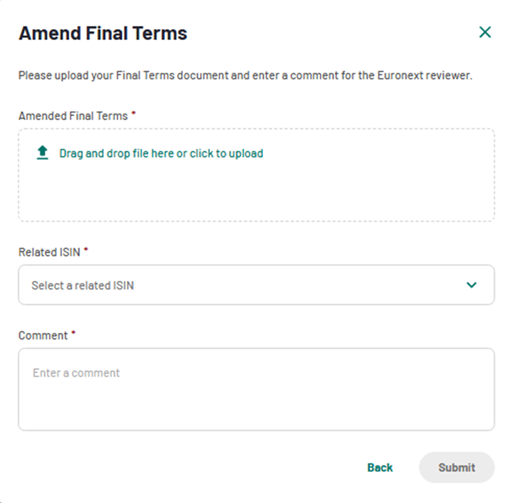
2. Amend Final Terms dialog modal
Complete the fields in the dialog and click "Submit".
If you opened the dialog by mistake, click the "Back" button, the dialog will close and no amendment will be started.
Once submitted, the new "Final Terms amendment" section will appear in the Project Folder, and the status of your project is now "Amendment in Review".
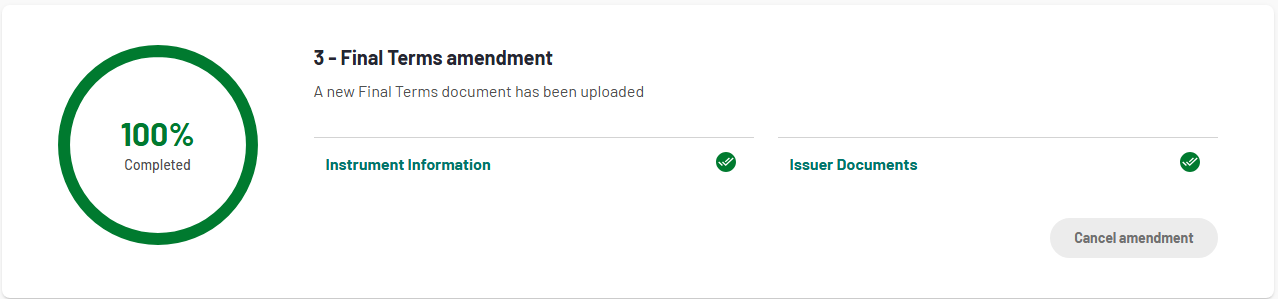
3. Final Terms amendment
Instrument Information and Issuer Documents tasks in the new "Project Amendment" section are automatically confirmed and the Final Terms amendment section immediately shows 100% of progress. Both Instrument Information and the Issuer Documents becomes read-only, you can see the ISIN under amendment and the uploaded Final Terms document, but you cannot edit them.
The Issuer document view is slightly changed with respect of a classical listing. In the Amended and restated flow, the section is renamed into Issuer Documents Amendment and you will only able to see the amended Final Terms document.
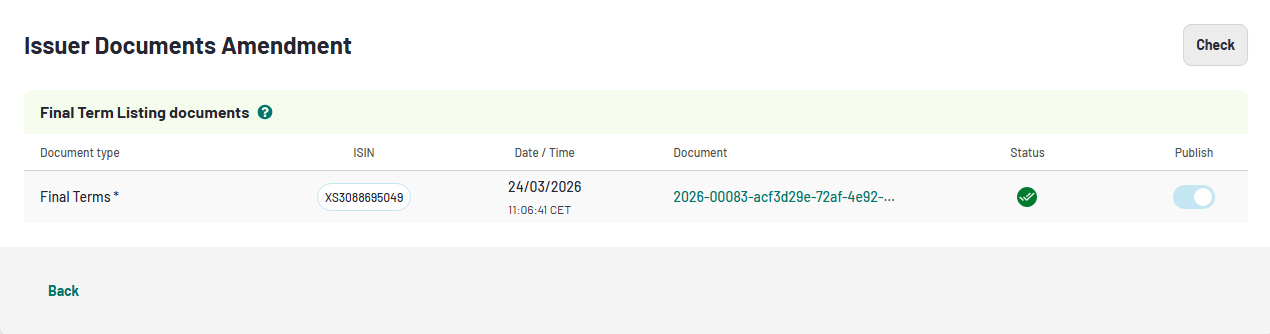
4. Issuer Document in A&R
At this stage, the "Amend Final Terms" button in section 2 of the project folder is disabled, in fact, you cannot submit another amendment while one is already in progress.
When Euronext has approved the amendment, the project status will turns to "Amendment Awaiting final review", and when the process is completed it turns to the Final status "Amendment Executed".
💡 Tip — If the "Amend Final Terms" button is not visible in the Listing Finalization section of the Project Folder, your project may not be eligible for this workflow. This typically applies to projects created before August 2025. Contact your Euronext listing operator for assistance.
Re-Amendment(project already in "Amended Executed" status
If a project has already been amended at least once and is now in "Amendment Executed" status, you can submit a further amendment. At this stage in fact, the Amend Final Terms button is visible and enabled again in the Listing Finalisation section.
By clicking on the button the dialog modal will opens, allowing you to fill the following fields:
- "Amended Final Terms"
- "Related ISIN"
- "Comment"
Upload the new version of the Amended Final Terms, complete the other fields and click "Submit" button on the dialog modal.
At this stage, the Amend Final Terms button is disabled until the current amendment is fully processed.
Status Transitions
The following section describe every status your A&R project can be in, what it means and what actions (if any) you need to take.
Executed
- What this means: Your project has been fully admitted and is in a stable, completed state. No amendment is currently in progress.
- What you should do:
- If you wish to amend the Final Terms, click Amend Final Terms in the Listing Finalization section of the Project Folder
- If you do not need to amend anything, no action is required
Amendment in Review
- What this means: You have submitted your amendment for the first time from an "Executed" project. The Euronext review team is now processing it.
- What you should do:
- No action is required from you at this stage.
- The "Amend Final Terms" button is disabled, you cannot submit another amendment while this one is in review.
- What happens next: The Euronext internal team reviews the Instrument Information and Issuer Documents tasks on their side, then submits the amendment to the processing system. The project will then move to Amend Final Review.
💡 Tip: If the "Amendment in Review" status does not appear on the Bond Admission Home Page shortly after you submit, refresh the page. If it is still missing after a few minutes, contact Euronext support — do not submit the amendment again.
Amendment in Progress
- What this means: You have submitted a re-amendment (a further amendment on a project that was already previously amended and is in "Amendment Executed" status). The Euronext review team is now processing it.
- What you should do:
- No action is required from you at this stage.
- What happens next: The same internal process applies as for "Amendment in Review" above. Euronext team reviews and processes the amendment before submitting it to the processing system.
Amendment Customer Review
- What this means: The Amended Final Terms file you uploaded has failed the automatic anti-virus scan. The project is now paused and is waiting for you to take action.
- What you should do:
- From the Project Folder, open the Issuer Documents section, it will be in read-only mode so you can review the status of the file.
- Click the Cancel Amendment button to cancel the current failed amendment.
- Once you have a clean version of the file, start a new amendment by clicking Amend Final Terms again.
- What happens next: After cancelling, the project status is restored as follows:
- If this was the first-ever amendment on this project: the status returns to Executed and the Final Terms amendment section is removed from the Project Folder.
- If this project had been amended before: the status returns to Amendment Executed, the amendment section remains visible, and the failed amendment data for the affected instrument is removed.
💡 Tip: You cannot start a new amendment until you cancel the failed one. If you skip the cancellation step and try to start a new amendment, the system will return an error preventing you from proceeding.
Amendment Customer Update
- What this means: The Amended Final Terms file upload failed due to a technical issue (e.g., a network interruption or a server error) - not a virus. The project is paused and is waiting for you to take action.
- What you should do:
- In the Project Folder, open the Issuer Documents section - it will be in read-only mode.
- Click the Cancel Amendment button to cancel the failed upload session.
- Start a new amendment by clicking Amend Final Terms again and re-uploading the file.
- What happens next: The same state restoration logic applies as described under "Amendment Customer Review" above — the project returns to its previous stable status depending on whether it had been amended before.
💡 Tip: Do not attempt to start a new amendment without first clicking "Cancel Amendment". Skipping this step will cause a system error that prevents you from proceeding.
Amend Final Review
- What this means: The Euronext internal operator has reviewed your amendment and submitted it to the processing system for final confirmation. The submission is currently in progress.
- What you should do:
- No action is required from you.
- What happens next: Once the system confirms the amendment, the project moves to Amendment Executed. If the submission encounters an error, the Euronext team will be notified and will contact you if further information is needed.
Amend Executed
- What this means: The processing system has confirmed that the amendment has been completed successfully. The Final Terms for your instrument have been updated. This is the successful end state of the workflow.
- What you should do:
- Confirm that the project on the Bond Admission Home Page now shows Amendment Executed.
- Open the Project Folder and verify that the **Project Amendment section shows 100% completion** and all tasks display a completed icon and label.
- In the Instrument Information view, you can now see all previously amended ISINs with their final updated values. If an ISIN was amended more than once, it is displayed once with the most recent values.
- In the Issuer Documents view, you can see all amended Final Terms documents for reference and download.
- Save or download a copy of the amended Final Terms for your records if needed.
What happens next: The workflow is complete. The "Amend Final Terms" button is re-enabled. If you need to make a further amendment in the future, start the process again from Section 2.2.
💡Tip
- If the Project Amendment section still shows 90% progress after the status changed to "Amendment Executed", wait a few minutes and refresh the page. The progress indicator updates once the final confirmation from the processing system has been fully received.
- If an ISIN has been amended more than once, the Instrument Information view will show it only once — displaying the most recent (final) amended values, not a history of each individual amendment.