
Corporate Action Equities - Request List and search
Corporate Actions Equities allows users to create, manage, review, and track corporate action requests for equity instruments listed on Euronext markets.
The application supports the following corporate action types:
- Cash Dividend
- Optional Dividend
- Capital Increase
- Capital Decrease
- Split
- Reverse-Split
You can create new requests, track their status, collaborate through team feature and comments, and manage the full lifecycle of a corporate action — from “Draft” to “Processed”.
Request List
The Request List is the main landing page of the application. It displays all corporate action requests and provides tools to search, filter, sort, and navigate to individual requests.
You can return to it at any time by clicking "Close" on any page.
The Request table shows the following columns:
| Column | Description |
| Owner | The user assigned as the owner of the request. Internal users can reassign ownership. |
| Request number | A unique identifier for each request. This column is sortable |
Issuer Name | The name of the issuer and the ISIN code of the instrument. |
Market | The market of reference for the instrument. |
Operation Type | The type of corporate action (e.g., Cash Dividend, Split). |
Effective Date | The scheduled effective date of the corporate action. This column is sortable. Also shows the request submission date or rejection date. |
Status | The current status of the request, displayed as a color-coded badge. |
This is how the request list looks like, and it can shows 20 requests per page:
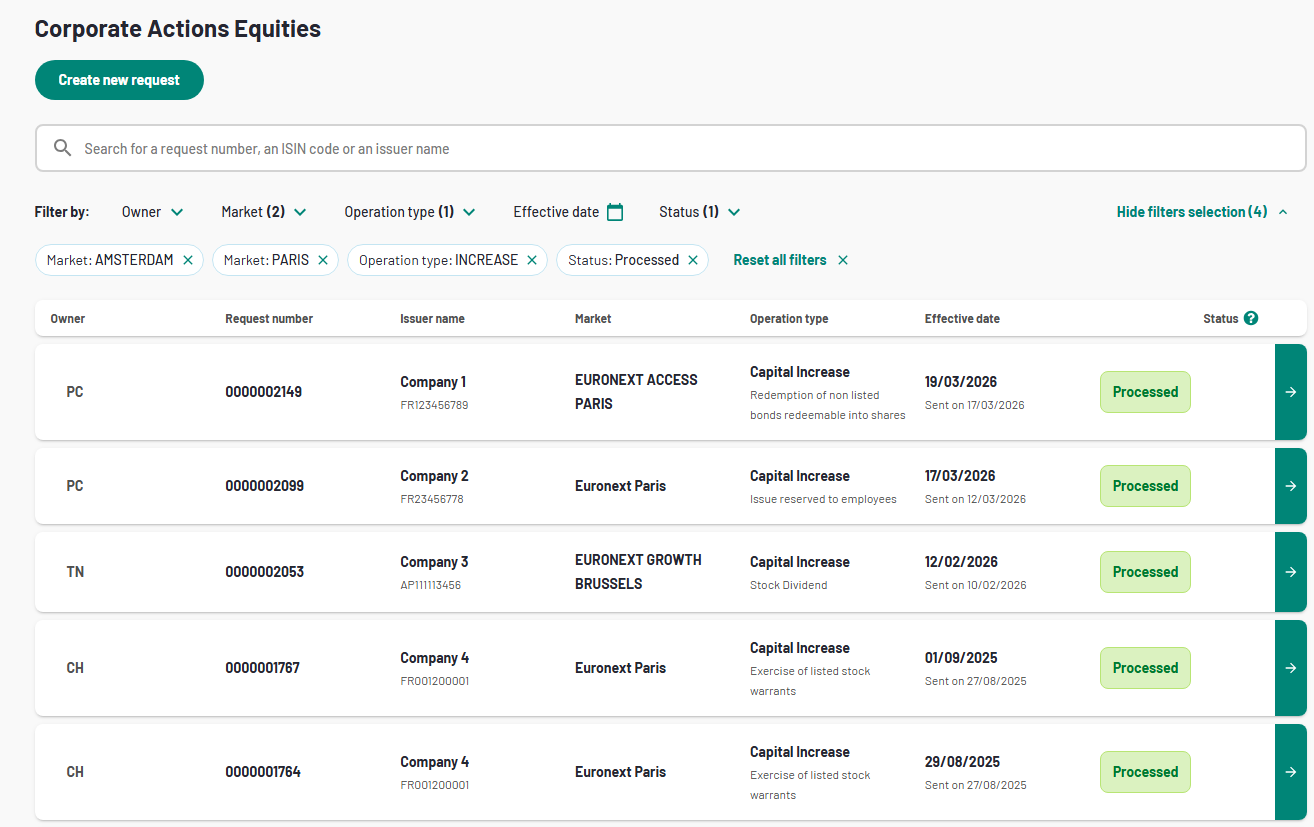
1. Request List
Search and Filters
Form the search bar at the top of the request list. You can search by Request number, ISIN code, or Issuer name.
Filters
You can narrow down the request list using the following filters:
- Owner — Filter by the assigned owner.
- Market — Filter by market (Amsterdam, Brussels, Lisbon, Paris, Milan, Dublin).
- Operation Type — Filter by corporate action type.
- Effective Date — Filter by effective date.
- Status — Filter by request status.
Active filters appear as chips below the filter bar. You can remove individual filters by clicking the "x" on each chip or click "Clear all" to remove all filters at once.
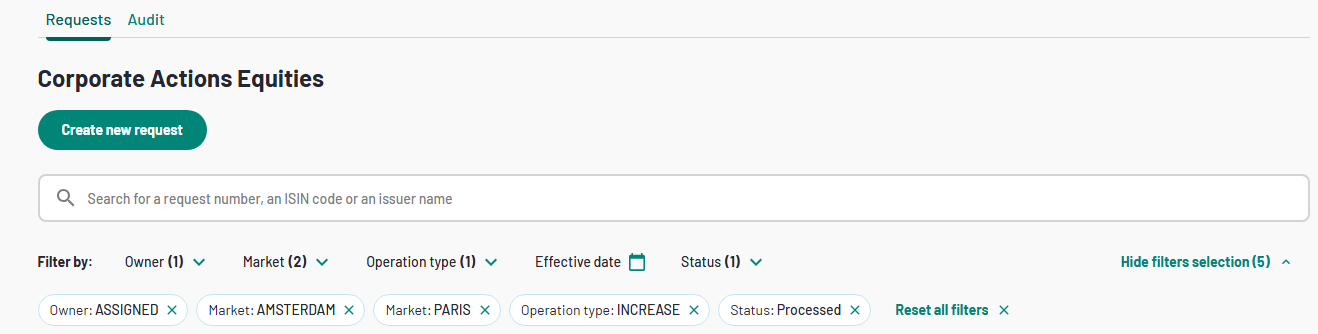
2. Request list filters and chips
Click the Create new request button at the top of the page to start creating a new request.
To open a request and move to the operation details, click on the green arrow of any row in the request list.
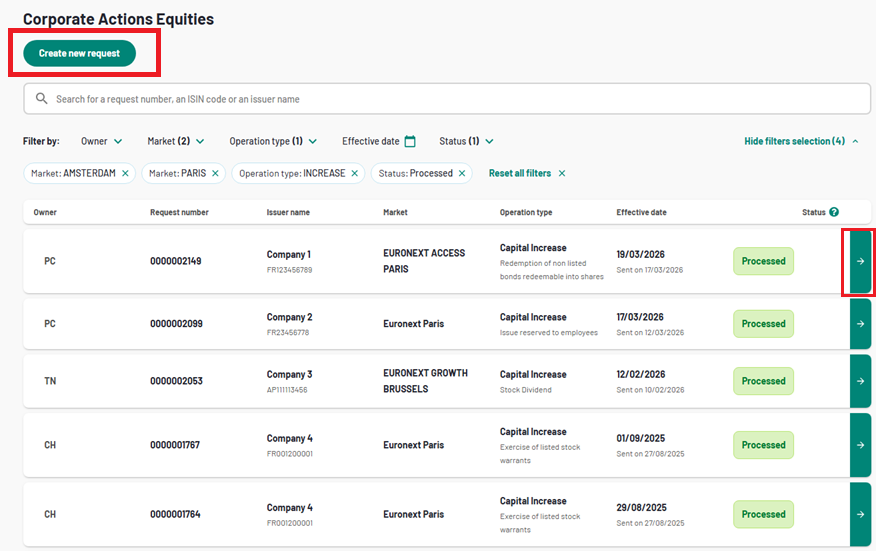
3. Create new request and open an existing one