
Browse and manage Publications
Access the All Publications Page
Log in to WebStudi and click the Publications menu. You will arrive at the All Publications page.
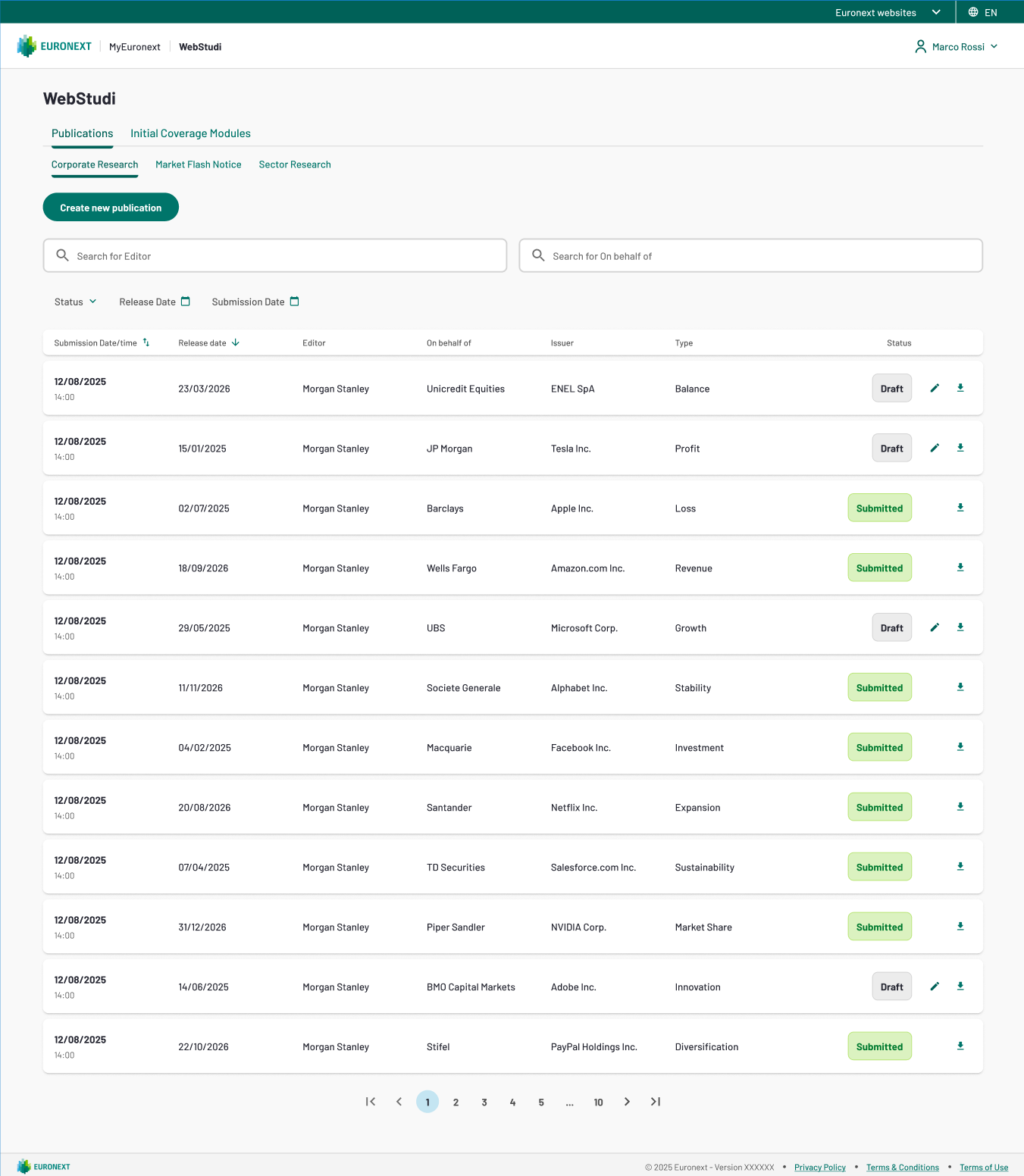
All Publications landing page
- Intermediaries and Specialists see publications within their operational perimeter — only those you are authorized to view.
- Publications are displayed in a table with category-specific tabs.
- By default, publications are sorted by most recent production date (newest first).
Tip: The page shows publication status at a glance — Draft (work-in-progress) or Submitted (published to Borsa Italiana).
Understand the Publication Table
The columns in the publications table change depending on the publication category. Here's what you'll see:
Company Research
Column | Description |
|---|---|
Production Date | Date the publication was submitted |
Editor | The intermediary that submitted the publication |
On Behalf Of | The intermediary this research is published on behalf of (if applicable) |
Issuer | The Issuer the research is about |
Type | e.g. Half Year Report, Annual Report, Special Report, Other |
Download | Click to download the PDF |
Flash Note
Column | Description |
|---|---|
Production Date | Date the publication was submitted |
Editor | The Intermiediary that submitted the publication |
Download | Click to download the PDF |
Sector Research
Column | Description |
|---|---|
Production Date | Date the publication was submitted |
Editor | The Intermediary that submitted the publication |
Sector | The market sector this research covers |
Download | Click to download the PDF |
Filter the Publication List
Use the filter controls at the top of the page to narrow your list.
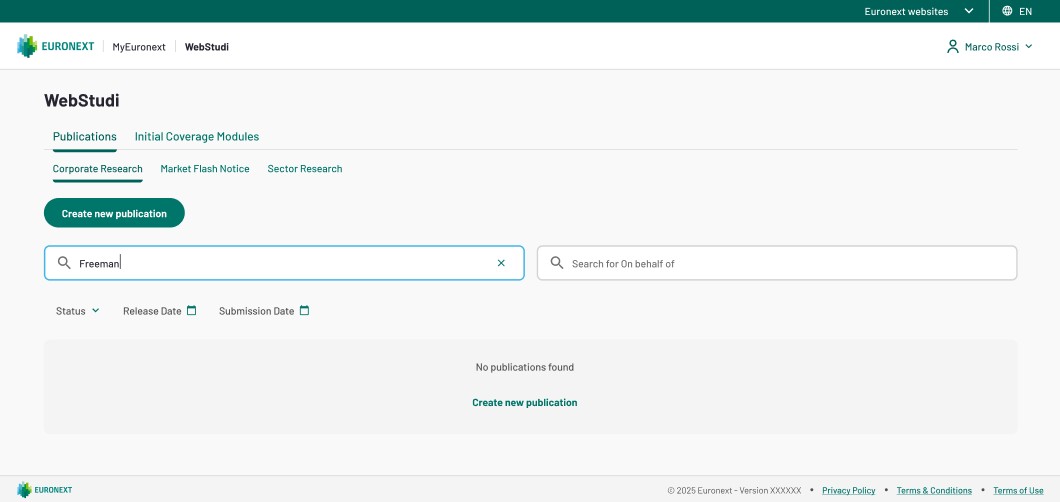
Filter controls for publication date, production date, status, and issuer search.
Filter by Date
- Production Date filter (date range): Shows only publications submitted within the selected date range
- Publication Date filter (date range): Shows only publications released within the selected date range
Filter by Status
Click the Status dropdown and select:
- Draft – Work-in-progress publications you have not yet submitted
- Submitted – Publications already published to Borsa Italiana
Search by Issuer
The search bar allows you to find publications by issuer name. The search behaviour depends on the publication category:
For Company Research:
- Click the search criteria dropdown and choose between:
- Editor – Search by the intermediary that submitted the publication
- On Behalf Of – Search by the intermediary the publication is on behalf of
- Type at least 3 characters and the list will update in real time
For Flash Note and Sector Research:
- The search bar defaults to Editor only
- Type at least 3 characters to filter results
Attention: When you combine multiple filters (e.g. Publication Date AND Status), they work together with AND logic — only publications matching all criteria are shown.
Download a Publication
- In the publications table, locate the publication you need
- Click the Download icon in the rightmost column
- The PDF will be saved to your device's default download location
Note: You can only download publications within your authorized perimeter. If a publication appears in the list but the Download button is inactive, contact your WebStudi administrator.
View Draft Publications
If you have submitted publications that you saved as drafts (but not yet submitted):
- Apply the Status filter and select Draft
- The table updates to show only your draft publications
- To continue editing a draft, you can click on the draft row to open the New Publication form